Download TDengine Historian
Get the complete AI-powered industrial data historian, including TDengine TSDB and IDMP, with a 15-day free trial. Choose Docker for the fastest evaluation path or local install for direct deployment on your machine.

Option 1
Deploy TDengine Historian with Docker
Best for fast evaluations and guided setup. This path uses Docker Compose and packages the historian components together so the core services are connected automatically.
Specifications
- CPU: 8 cores
- Memory: 16 GB
- Disk: 50 GB free space
Prerequisites
- Install and run Docker Desktop.
- Download and unzip the deployment repository.
- Open a terminal in the
dockerdirectory within the deployment repo.
Deployment
- Standard
(without TDgpt):docker compose up -d - Full (with TDgpt):
docker compose -f docker-compose-tdgpt.yml up -d
Access after deployment
In a web browser, access TDengine Historian services:
- TDengine TSDB:
http://localhost:6060 - TDengine IDMP:
http://localhost:6042
Option 2
Install TDengine Historian locally
Best for direct deployment on Linux or Windows. In this path, you install TDengine TSDB-Enterprise first, then install TDengine IDMP, configure the connection, and start the services.
Specifications
- CPU: 8 cores
- Memory: 16 GB
- Disk: 50 GB free space
Download
Visit the TDengine Download Center and download the TDengine TSDB-Enterprise and TDengine IDMP-Enterprise installation packages.
Optional: Download the TDengine TDgpt-Enterprise installation package to enable forecasting, anomaly detection, and more.
Installation
- Run the TDengine TSDB-Enterprise installation package and start all services.
- (Optional) Run the TDengine TDgpt-Enterprise installation package.
- Run the TDengine IDMP-Enterprise installation package and start all services.
Access after deployment
In a web browser, access TDengine Historian services:
- TDengine TSDB:
http://localhost:6060 - TDengine IDMP:
http://localhost:6042
The video below shows the full installation procedure on Windows.
After installation
Next Steps
Activate TDengine Historian
Enter your email and organization, get the activation code, accept the agreement, and finish activation.
Create your account
Set your name, role, and password for the first administrator account.
Load a sample scenario
Choose one or more built-in sample scenarios to start exploring TDengine Historian quickly.
Explore the UI
Use the tour guide, review elements, try AI-generated panels, and test AI-powered analysis.
Licensing
Activate your TDengine License
Obtain License Code
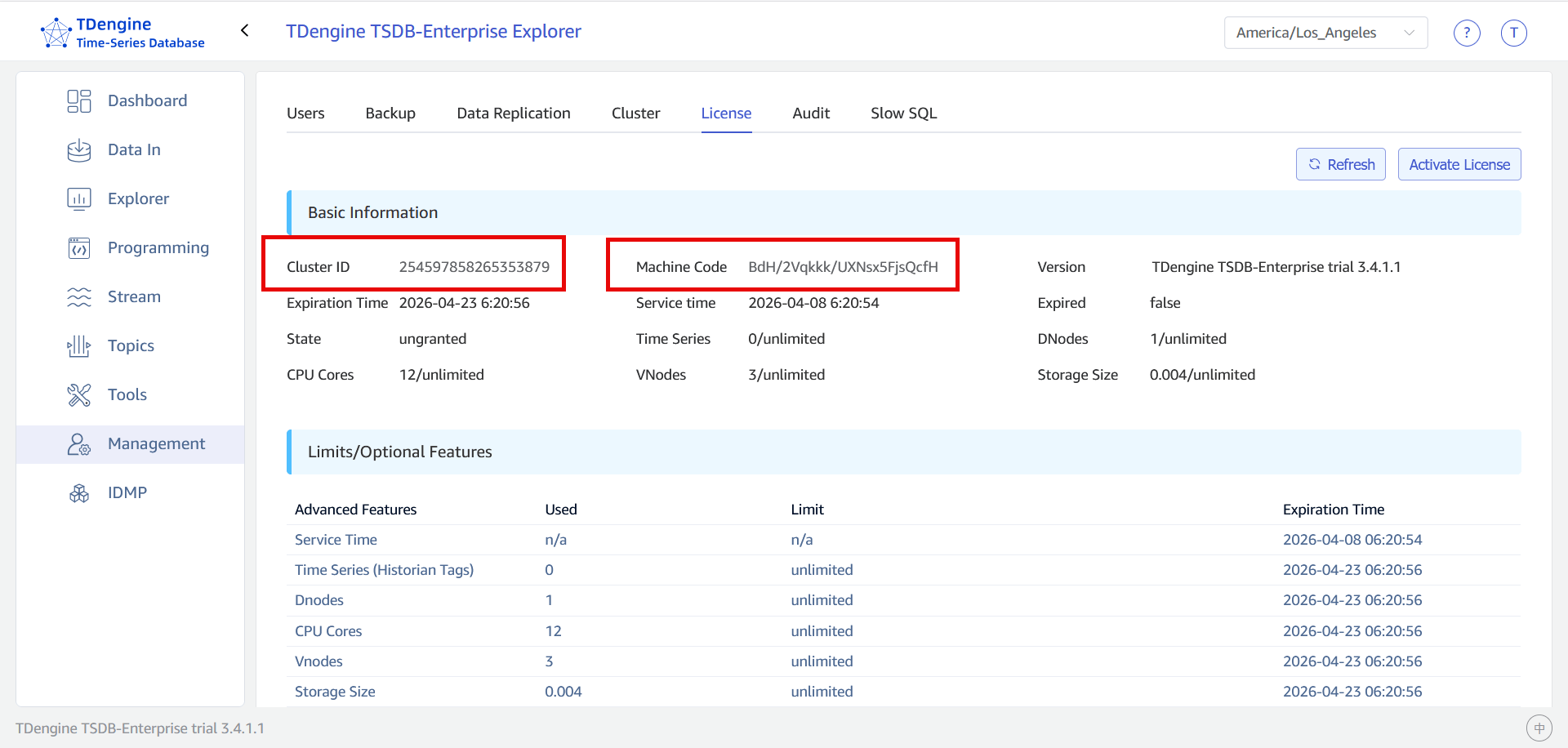
- Log in to TDengine TSDB Explorer as the
rootuser. The default URL ishttp://127.0.0.1:6060. - From the main menu on the left, select Management and open the License tab.
-
Copy the value of the Cluster ID and Machine Code fields:

Activate License Code
- Send the cluster ID and machine code to your account representative or authorized reseller to receive your license code.
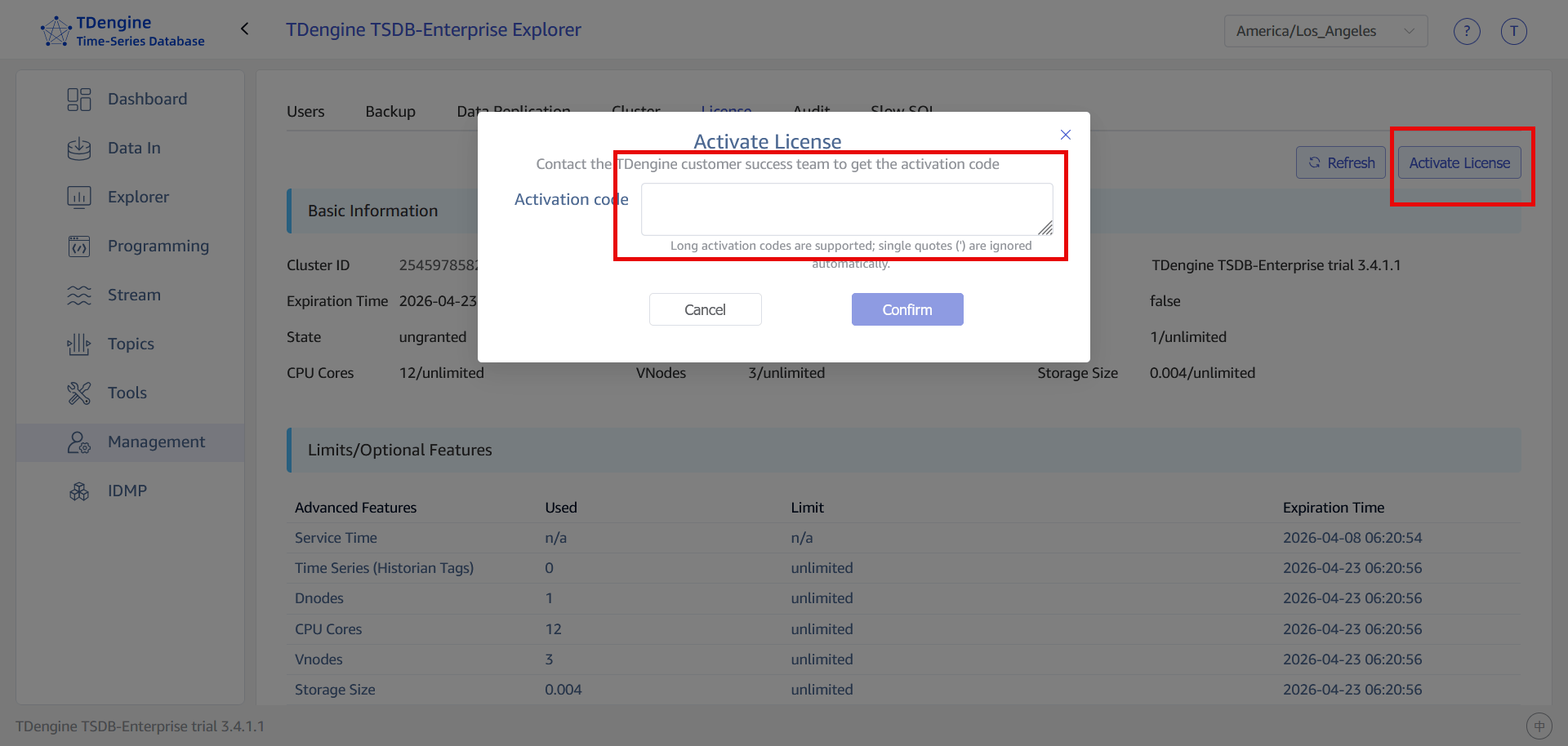
- From the main menu on the left, select Management. Open the License tab and click Activate License.
-
Enter your license code and click Confirm.

Ready to Download TDengine Historian?
Choose the deployment path that fits your evaluation or environment and get started with the complete historian package.


