Deploy TDengine in Docker
-
Install Docker on your local machine. You can install Docker Desktop from the Docker website.
-
Install Git on your local machine. For more information, see the Git website.
-
Clone the tdengine-idmp-deployment repository:
git clone https://github.com/taosdata/tdengine-idmp-deployment.git -
Start Docker Compose:
cd tdengine-idmp-deployment/docker
docker compose up -d
Note: On Windows, use a backslash (\) instead of a forward slash (/):
cd tdengine-idmp-deployment\dockerThis command will automatically pull the required images and start the TDengine IDMP and TDengine TSDB-Enterprise services in detached mode.
-
In your browser, access TDengine IDMP at
http://localhost:6042and log in with your email address and organization. Then enter your name and other information as prompted to create your account. -
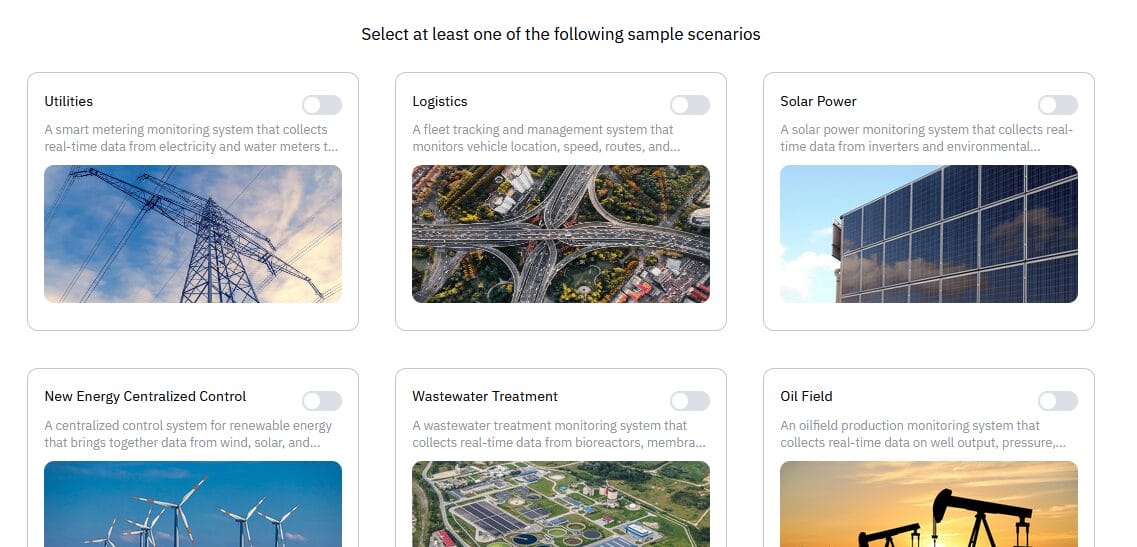
On the page displayed, select any of the sample scenarios. This sample data will not be used in this exercise and can be ignored. Then click Confirm.

-
Click the X icon to close the tour guide. You can go through this guide on your own at any time by clicking the profile icon in the upper right and selecting Tour Guide.
Ingest Data into TDengine
-
In TDengine IDMP, click your profile in the top-right corner and select Admin Console.

-
In the main menu on the left, select Data In > TDengine. Confirm the TDengine connection status shows In Use.

-
Click + Add Source to add your OPC UA data source and configure it as follows:

-
General Information:
- Name: EnterpriseB_OPC (or preferred name)
- Type: OPC-UA
- Target: Create your database
-
Connection Configuration:
- Server Endpoint:
virtualfactory.proveit.services:4841/discovery
- Server Endpoint:
-
Authentication:
- Username:
proveitreadonly - Password:
proveitreadonlypassword
- Username:
-
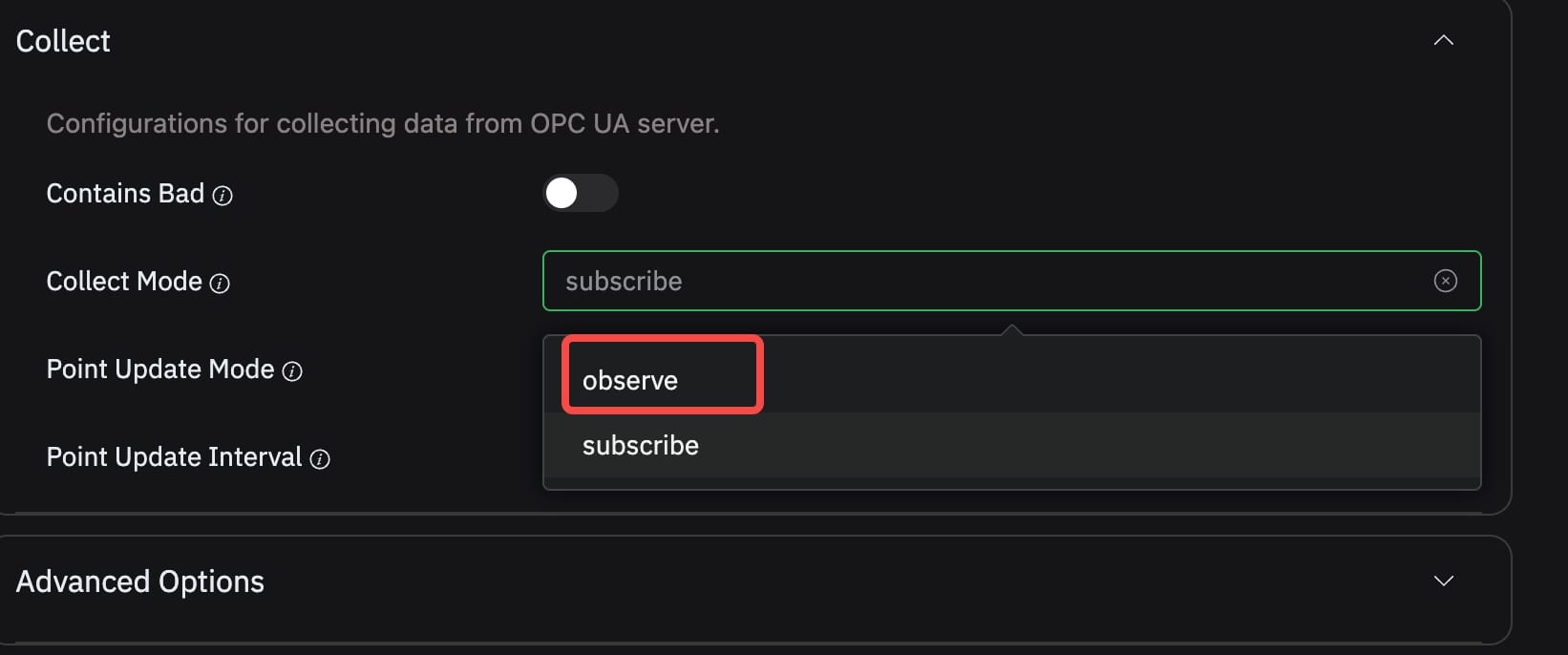
Collect:
- Point Update Mode:
observe

- Point Update Mode:
-
-
Click Check Connection to validate. Once successful, save the configuration.

-
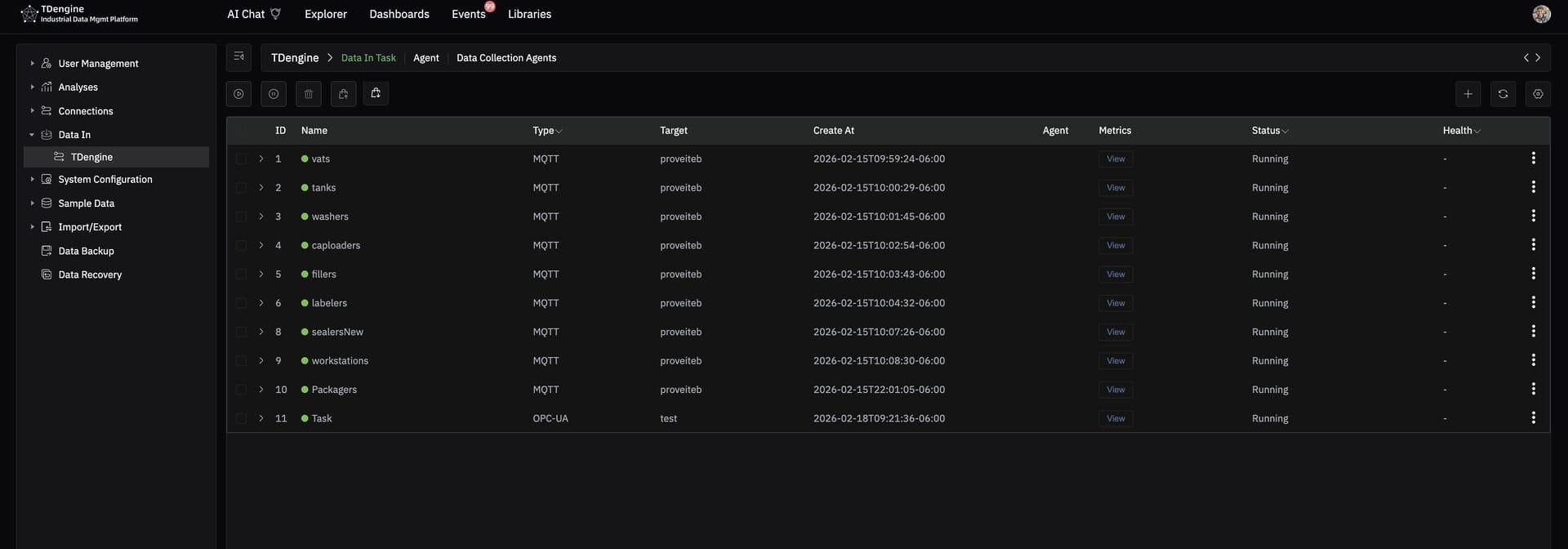
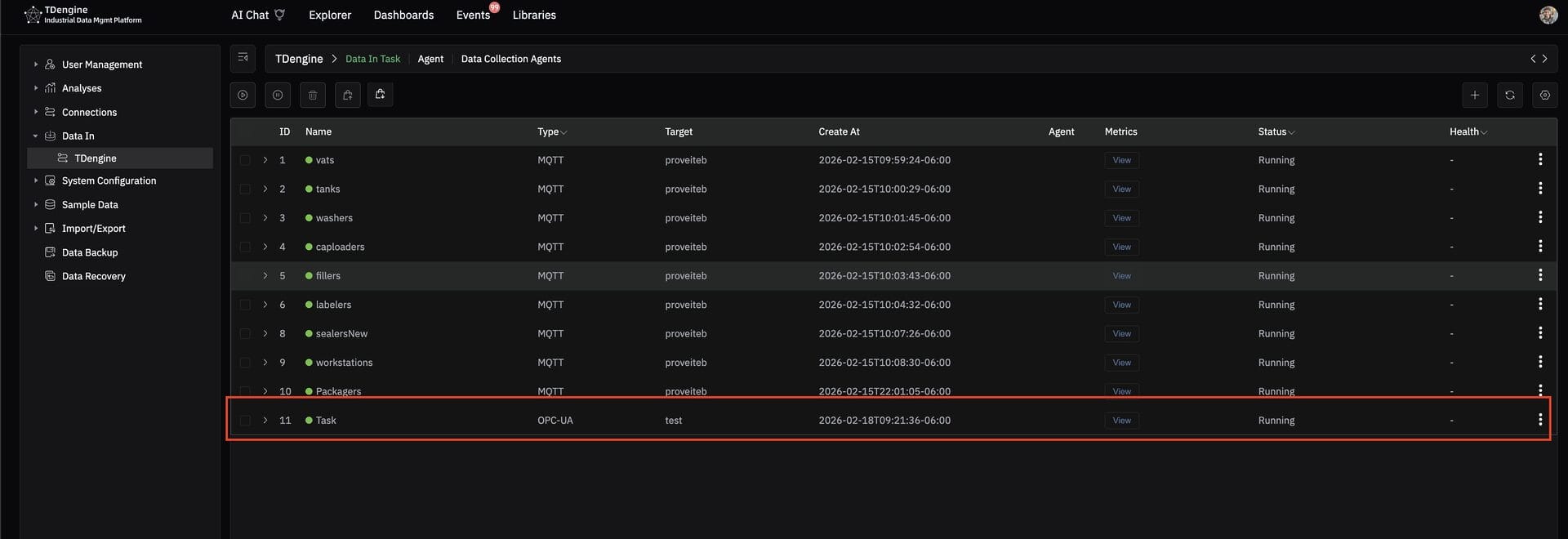
In the main menu on the left, select Data In > TDengine. Confirm that your OPC UA task appears in the list and the Status is displayed as Running.

-
In the menu at the top, select Explorer. Then, in the main menu on the left, right-click Elements. Select New Child Element and enter a custom name. This element will serve as the parent node for the OPC import.

-
Click your profile in the top-right corner and select Admin Console. In the main menu on the left, select Connections > TDengine. Then click Import from OPC.

-
Set the following:
- Database:
test(or your selected database) - Parent Element: Your Created Element
For each super table listed:
- Data Column:
val - Path Level: 1
Proceed through the wizard and click Finish.

- Database:
-
In the menu at the top, select Explorer. Under the parent node for the OPC import, you should now see:
- The imported element hierarchy
- Attributes created automatically
- Live data updating (if OPC server is actively publishing)
Your OPC UA connection to Enterprise B is now fully integrated with TDengine IDMP.






What to Do Next
-
Start with Panels
Go to Explorer, open an element, and create Panels.
- Add time-series trends for key metrics (temperature, flow, state, etc.)
- Add stat panels for current values
- Adjust time ranges and enable auto-refresh
You can also use AI to generate panels(Using Panel Insights or by describing what you want to see (for example, “show temperature and flow for the last 24 hours”). This accelerates visualization creation.

-
Build a Dashboard Once You Have Enough Panels
After creating several useful panels, go to Dashboards → Create Dashboard.
- Add your saved panels
- Organize by process area or site
- Use a shared time range for synchronized analysis
This produces a structured operational view suitable for monitoring and demonstration.

-
Run AI Analysis and Generate Events
Once sufficient historical data exists, create an Analysis (Using AI with Suggestions or Natural Language for example, send me a warning when the temperature gets larger than 45 C).

- Run anomaly detection
- Apply forecasting models
- Use AI-generated insights
You can also generate events from analysis results, allowing you to detect abnormal conditions, define event windows, and track operational incidents over time. This demonstrates full analytics-to-action capability.


