Getting hands-on experience with real industrial data is often harder than it should be. Production systems are closed, test datasets are oversimplified, and setting up realistic telemetry pipelines usually requires hardware you don’t have. To remove that barrier, TDengine now provides a free public MQTT feed that simulates a utility-scale solar fleet, streaming realistic, hierarchical time-series data in real time.
In this walkthrough, we’ll show how to ingest that live MQTT data into TDengine TSDB for high-performance storage and querying, and then use TDengine IDMP to model assets and perform visualization and analytics. By the end of this guide, you’ll have a working end-to-end pipeline that mirrors real-world industrial deployments, without needing any field devices or proprietary systems.
Deploy TDengine in Docker
Note: If you already set up TDengine in TDengine Cloud, skip this step.
-
Install Docker on your local machine. Please follow the instructions from https://idmpdocs.tdengine.com/en/get-started/get-started-docker/.
-
In your browser, access TDengine TSDB Explorer at
http://localhost:6060and log in with the default usernamerootand passwordtaosdata -
Enter your name and email address as prompted to activate TDengine TSDB-Enterprise.
-
In your browser, access TDengine IDMP at
http://localhost:6042and log in with your email address and organization. Then enter your name and other information as prompted to create your account. -
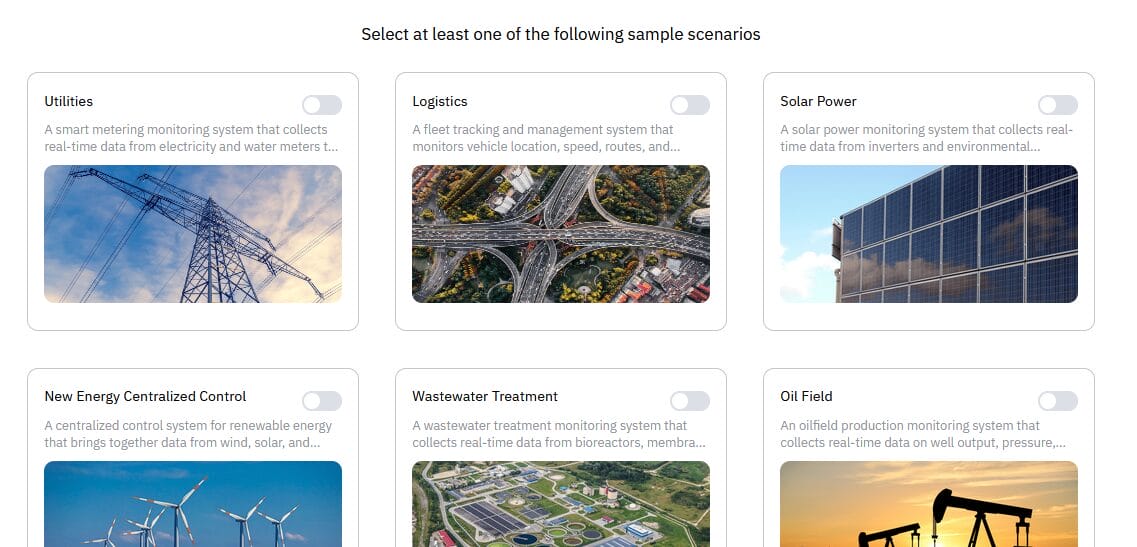
On the page displayed, select any of the sample scenarios. This sample data will not be used in this exercise and can be ignored. Then click Confirm.

-
Click the X icon to close the tour guide. You can go through this guide on your own at any time by clicking the profile icon in the upper right and selecting Tour Guide.
Ingest MQTT Data in TDengine TSDB
This exercise uses data from the weather topic in our public MQTT broker. In this section, you will configure TDengine TSDB to ingest the data from this topic into a database.
-
In a web browser, access TDengine TSDB (https://tsdb.tdengine.com for TDengine Cloud users or http://localhost:6060 for Docker users).
-
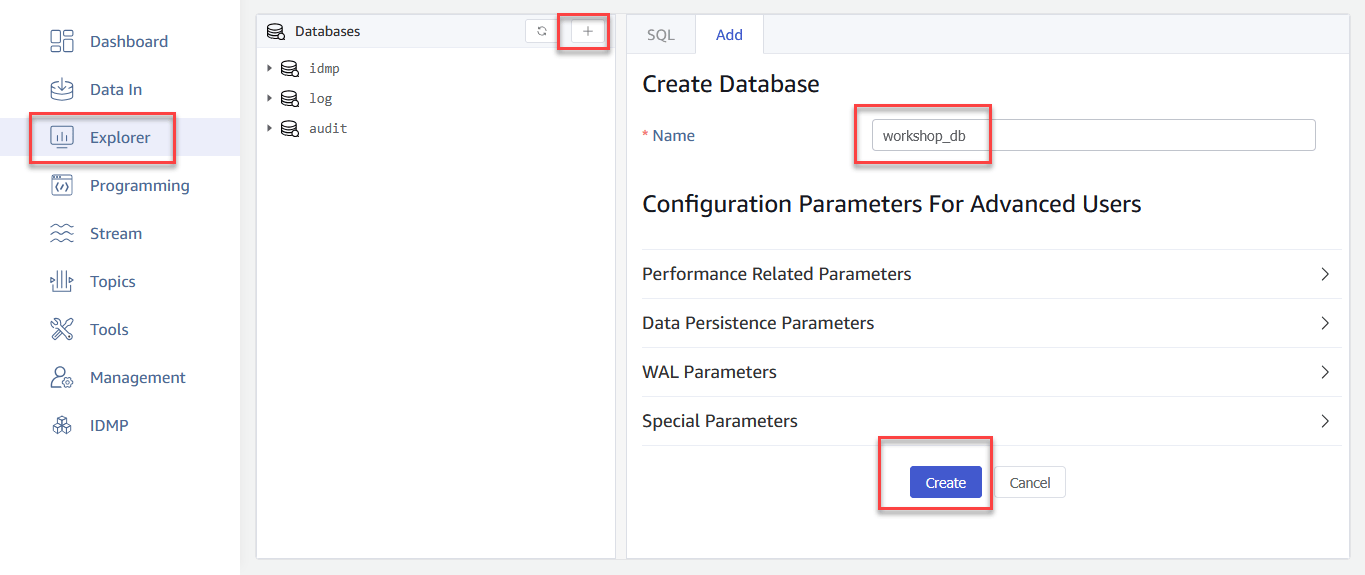
From the main menu on the left, select Explorer, then click the + sign to create your database. Enter a name for the database and click Create.

-
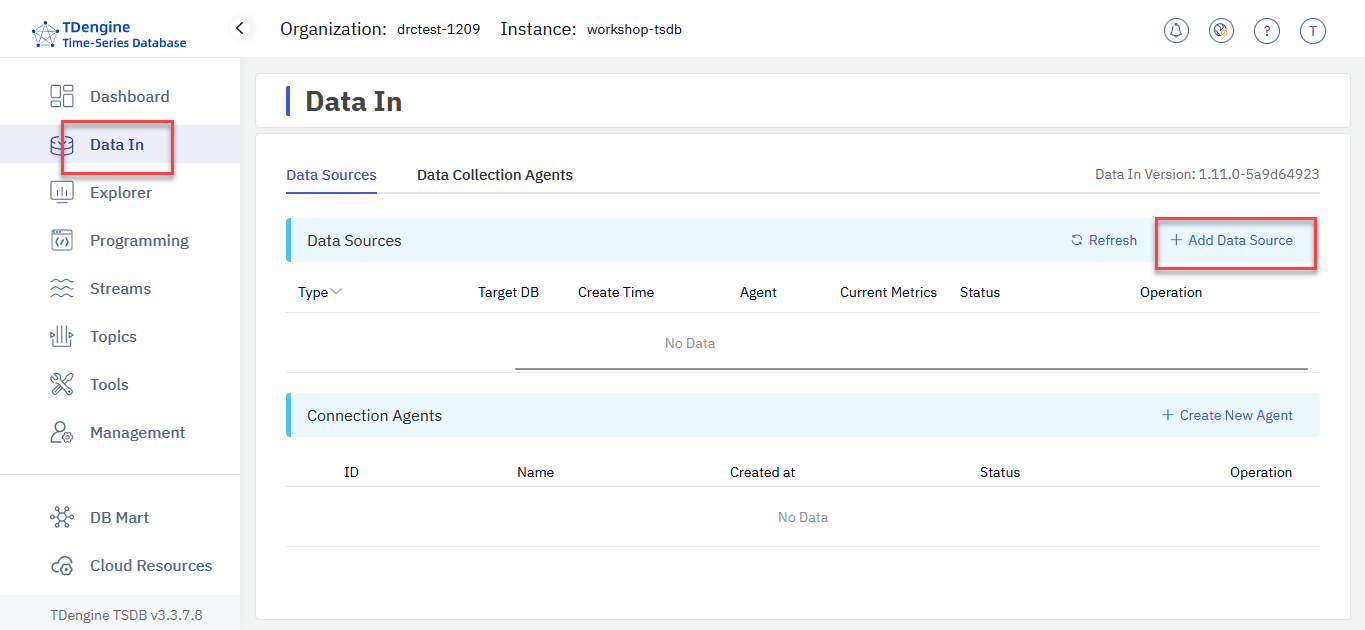
From the main menu on the left, select Data In, then click Add Data Source to configure MQTT ingestion.

-
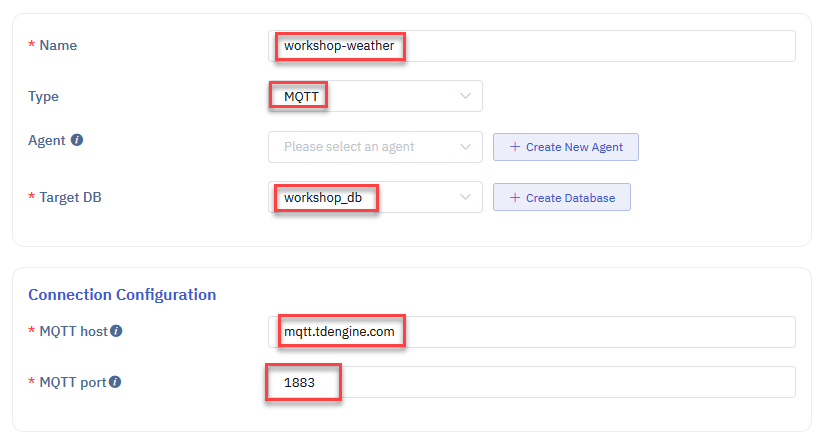
On the page displayed, enter a unique name for the data ingestion task. From the Type drop-down menu, select MQTT.
From the Target drop-down menu, select the database that you created in the previous step.
In the Connection Configuration section, enter mqtt.tdengine.com as the MQTT Host and 1883 as the MQTT Port.

-
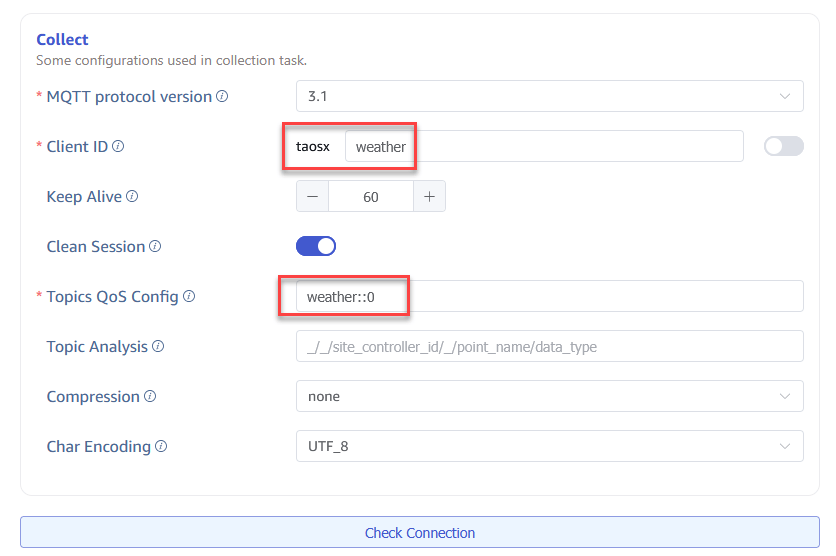
In the Collect section, enter a unique client ID for the data ingestion task. Then, in the Topics QoS Config field, enter weather::0.

Click Check Connection to ensure that your configuration is correct.

If you encounter any errors, confirm that your Internet connection is stable and that you can access
mqtt.tdengine.com. -
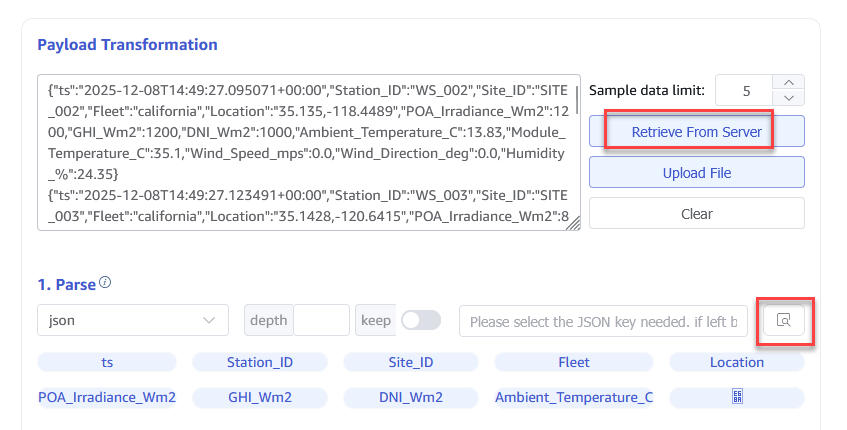
In the Payload Transformation section, click Retrieve from Server. Five data records will be retrieved and displayed in JSON format in the text box on the left.
Then click the Parse icon. This parses the MQTT data records so that they can be written to TDengine TSDB.

At the bottom of the section, click Create STable to create a supertable for the weather data.

-
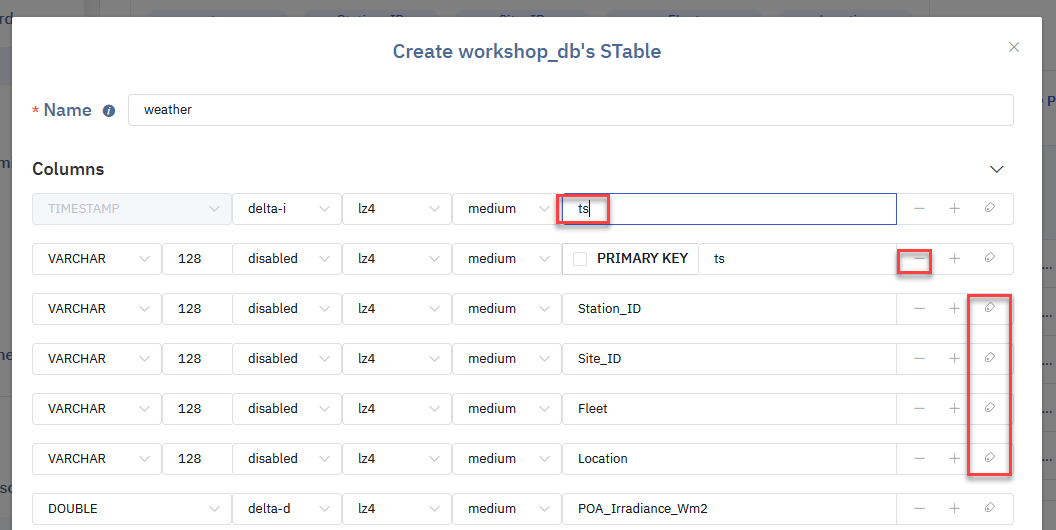
In the Create STable dialog box, configure your supertable.
-
Enter a unique name for the supertable.
-
Set the
TIMESTAMPcolumn totsand delete the prefilledtscolumn. -
Move
Station_ID,Site_ID,Fleet, andLocationto the Tags section. You can do this by clicking the tag icon on the right of each item.
-
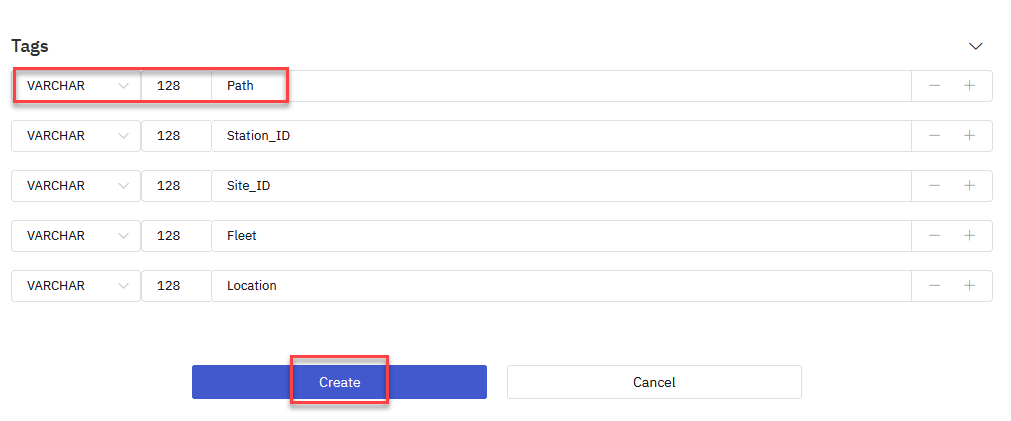
Add a tag of type
VARCHARnamed Path. This will be used as the path for asset modeling. -
Click Create.

-
-
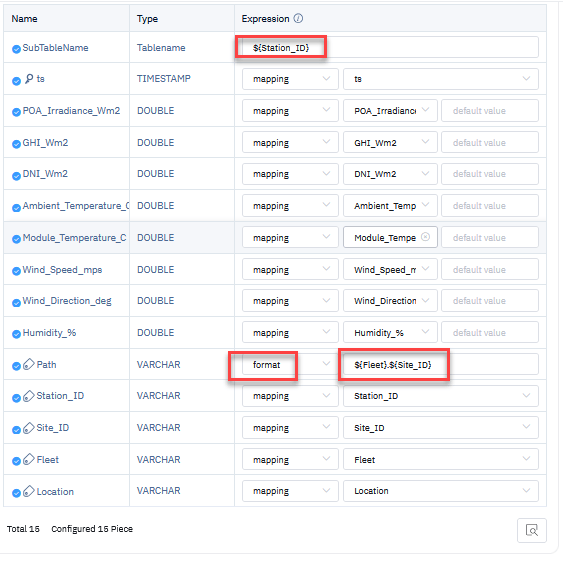
After returning to the Mapping section, enter ${Station_ID} as the SubTableName. This names automatically generated subtables based on the value of the
Station_IDtag.
All items should be mapped except
Path. SetPathto the format ${Fleet}.${Site_ID}. -
Click Add to finalize the data ingestion task.


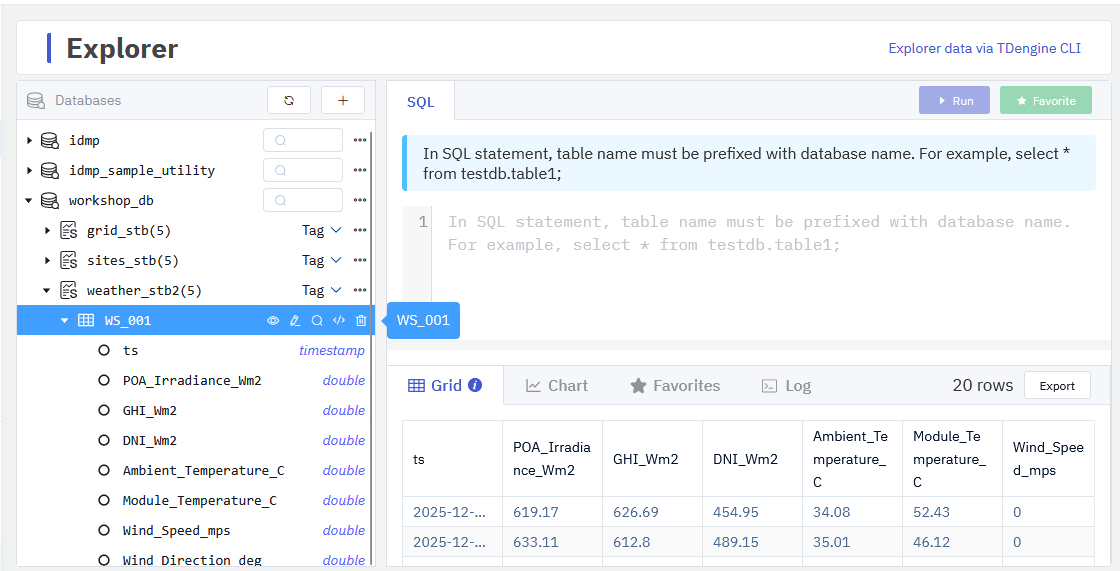
The data ingestion task will start, and after a few seconds you will see data in your database. From the main menu on the left, select Explorer and view your tables to confirm that data is flowing.
Once the data is being ingested into TDengine TSDB, proceed to set up TDengine IDMP.
Get Started with TDengine IDMP
Import Data from TDengine TSDB
-
In a web browser, access TDengine IDMP (https://idmp.tdengine.com for TDengine Cloud users or http://localhost:6042 for Docker users).
-
Click the profile icon in the top right corner and select Admin Console.
-
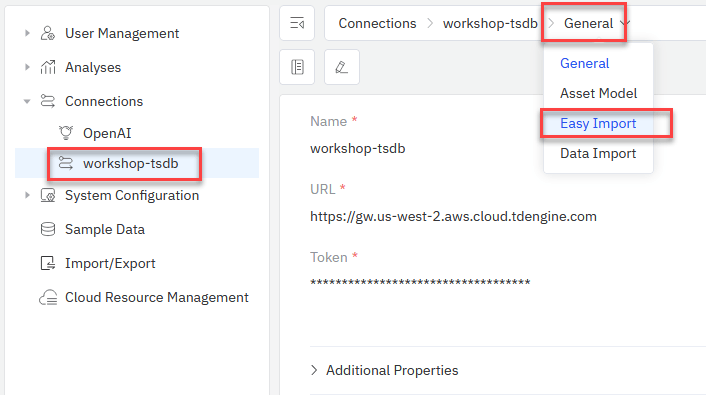
Select Connections, choose your TDengine instance, and open the Easy Import page.

-
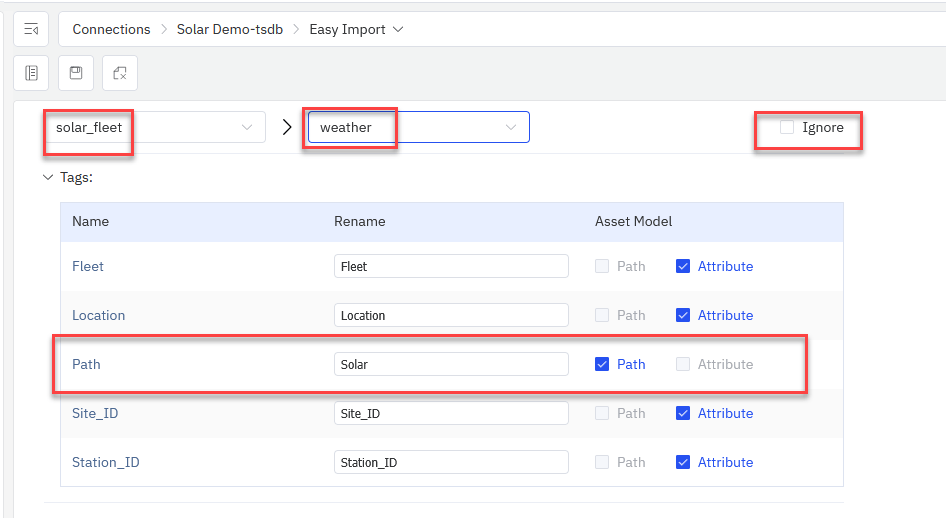
Select the database that you created for your data ingestion task and deselect Ignore on each supertable. Then set the tag Path as the Path in the asset model.

-
Confirm that Ignore is selected on all other databases not used in this exercise, such as the sample scenario data. Then click Finish at the bottom of the page. Asset data is imported into TDengine IDMP.
-
From the main menu at the top, select Explorer. In the sidebar, open the Elements tree to see your assets in TDengine IDMP organized by site.

You can now add attributes, visualizations, real-time analysis tasks, and events for your assets.
-
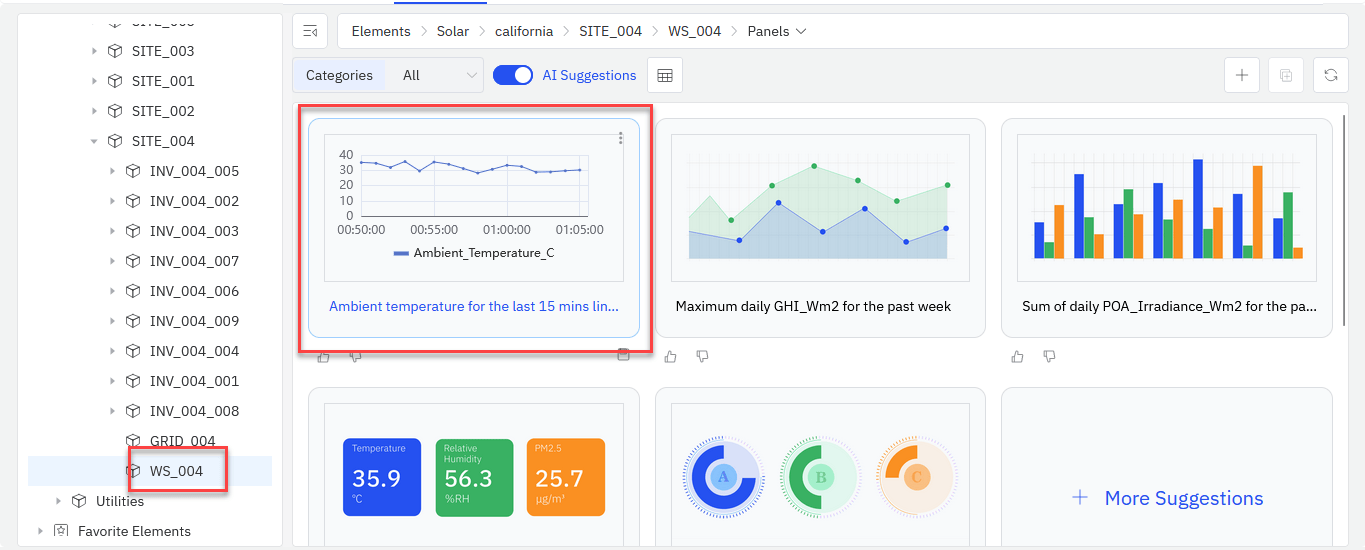
In the sidebar, select SITE_004 > WS_004, open the Panels page, and scroll down to locate the chat box.

-
Type in
Ambient temperature for the last 15 mins line graphand click Ask AI. The panel will be generated at the top of the page.
-
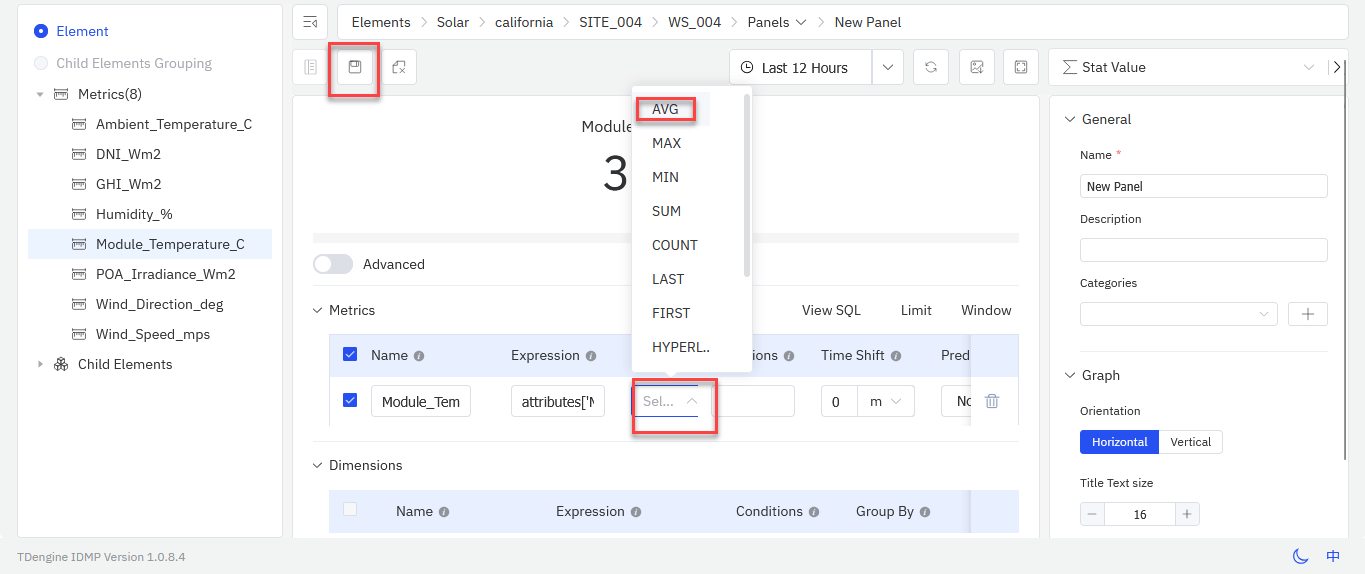
In the sidebar, select SITE_004 > WS_004, open the Panels page, and click the + (Add New Panel) icon on the right side of the page.

-
In the sidebar, click the three dots icon on
Module_Temperature_Cand select Add to Metrics. Then in the top right, set the chart type to Stat Value.
-
Under Function, select AVG to take the average value of the metric. Then click Save.

-
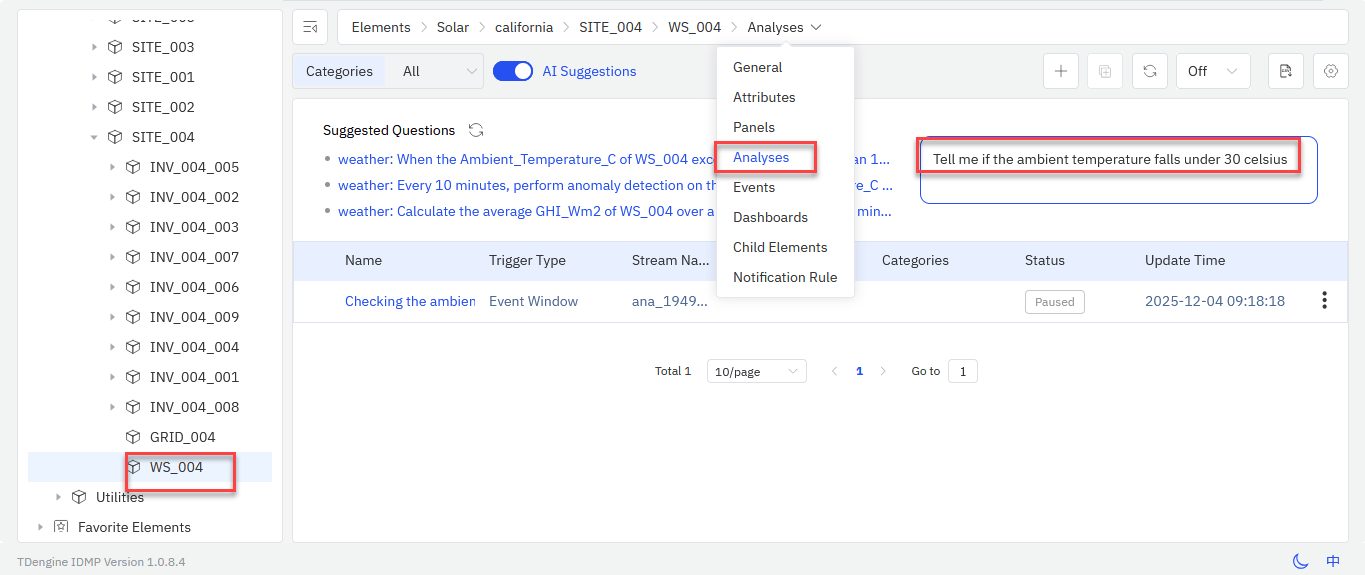
In the sidebar, select SITE_004 > WS_004 and open the Analyses page. In the Chat BI area, type Tell me when ambient temperature falls under 30 celsius and press Enter.

You can see that the AI has configured this analysis task as an event window.

-
Click Save. Then from the menu at the top of the page, select Events and view any events that have been generated by your analysis.
Create Dashboards in TDengine IDMP
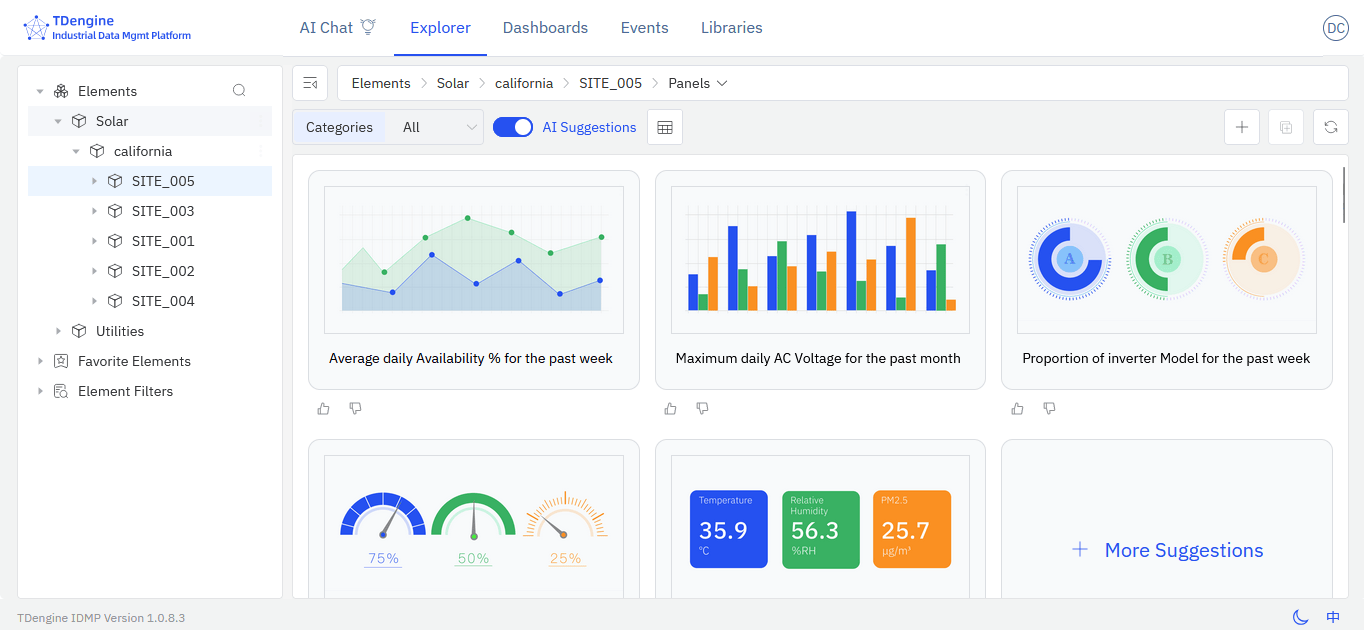
Dashboards consist of one or more panels that you can create on your own or with our AI copilot. To create a panel, select any element and open its Panels page.
TDengine IDMP features zero-query intelligence, an AI-assisted feature that generated recommended panels for you. When you click an element and open the Panels page, five suggested panels will be displayed automatically.
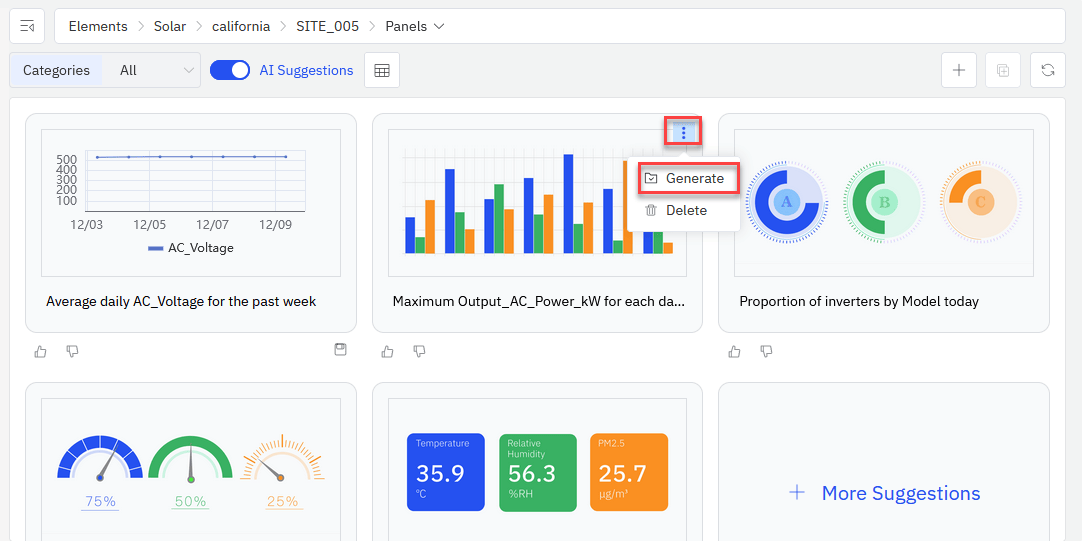
If you want to use an AI-generated panel, click the three dots icon in the top right of the panel and select Generate. Once the panel is generated, click the three dots icon again and select View to see the panel in action or modify it.
Create a Panel with Chat BI
You can prompt the TDengine IDMP AI copilot to create panels for you.

Create a Panel Manually
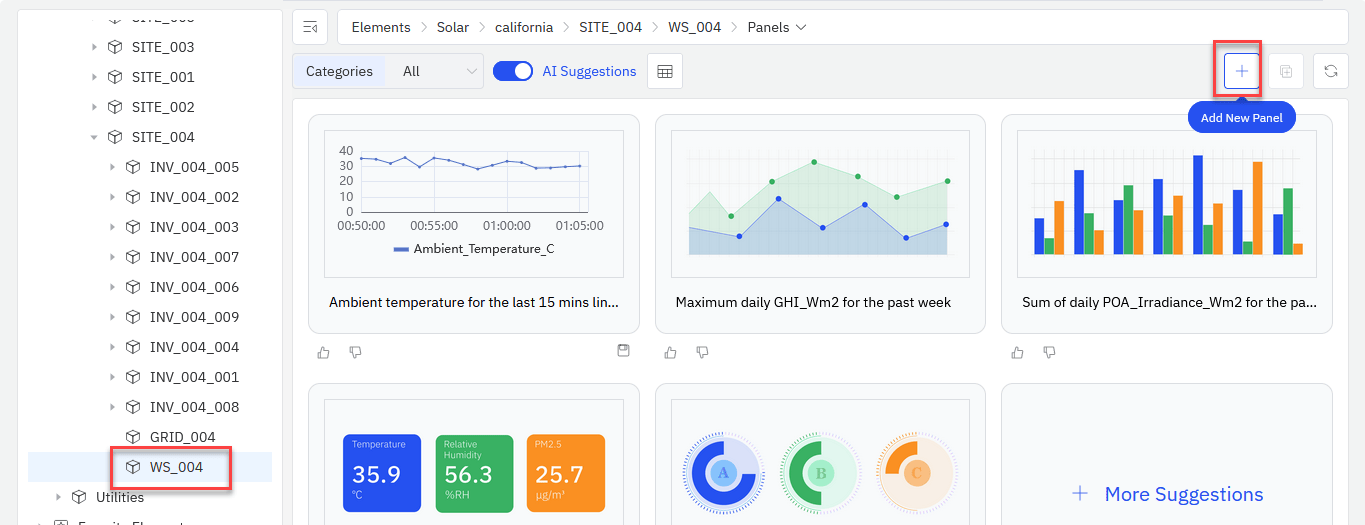

Create a Dashboard
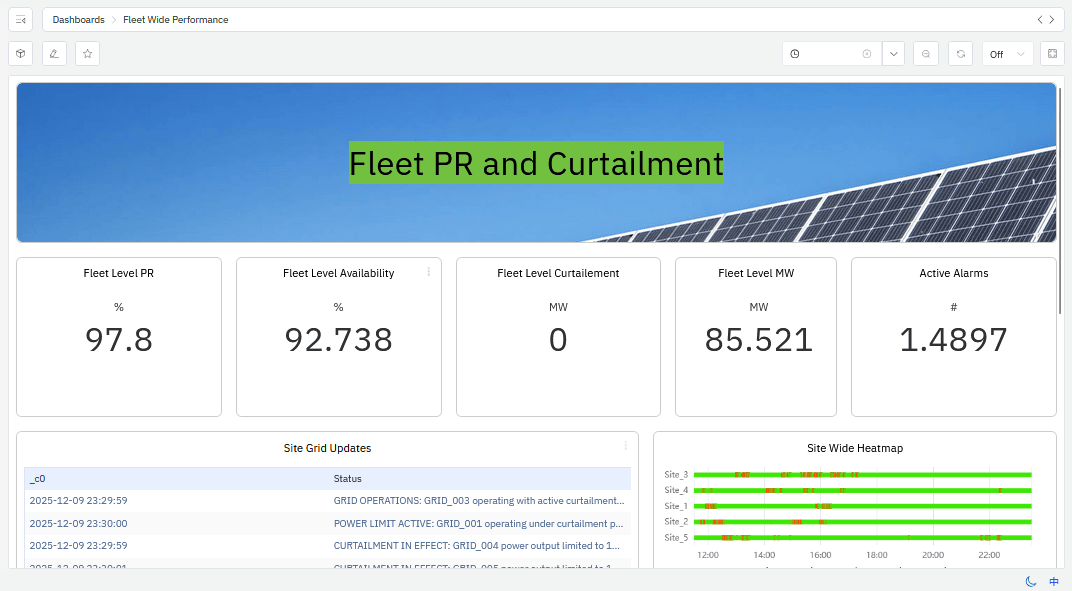
Once you have created at least one panel, you can organize your panels in dashboards. In the sidebar, select an element and open the Dashboards page. Click the + (Add New Dashboard) icon in the top right. Then select and place panels on the grid to create your dashboard. An example is shown as follows.
Create Real-Time Analytics Tasks and Events
Like panels, you can use zero-query intelligence and Chat BI to create real-time analytics tasks. To do so, select an element in the sidebar and open the Analyses page.
AI suggestions are displayed on the left, and you can click any question to create the corresponding analysis task. Chat BI is available on the right. You can also create a task manually by clicking the button at the bottom of the page.

Conclusion
By completing this walkthrough, you now have a working end-to-end example of how to ingest live industrial data from an MQTT source into TDengine TSDB and organize it using TDengine IDMP. You’ve seen how raw telemetry can be stored efficiently, modeled into meaningful assets, and enriched with context for analysis and visualization. The same approach can be applied to real-world IoT, energy, or industrial environments—scaling from a single site to large, distributed fleets—giving you a solid foundation for dashboards, advanced analytics, and AI-driven use cases.