This workshop will walk through a practical approach to making OEE actionable. We’ll begin with ingesting and structuring time-series data, then show how to break down OEE across availability, performance, and quality. From there, we’ll demonstrate how to identify performance losses and isolate their root causes using data exploration and AI-assisted analysis, with a focus on turning insights into clear operational actions.
Deploy TDengine Historian in Docker
-
Install Docker on your local machine. You can install Docker Desktop from the Docker website.
-
Install Git on your local machine. For more information, see the Git website.
-
Clone the tdengine-idmp-deployment repository:
git clone https://github.com/taosdata/tdengine-idmp-deployment.git -
Start Docker Compose:
cd tdengine-idmp-deployment/docker
docker compose up -d
Note: On Windows, use a backslash (\) instead of a forward slash (/):
cd tdengine-idmp-deployment\dockerThis command will automatically pull the required images and start the TDengine IDMP and TDengine TSDB-Enterprise services in detached mode.
-
In your browser, access TDengine IDMP at
http://localhost:6042and log in with your email address and organization. Then enter your name and other information as prompted to create your account. -
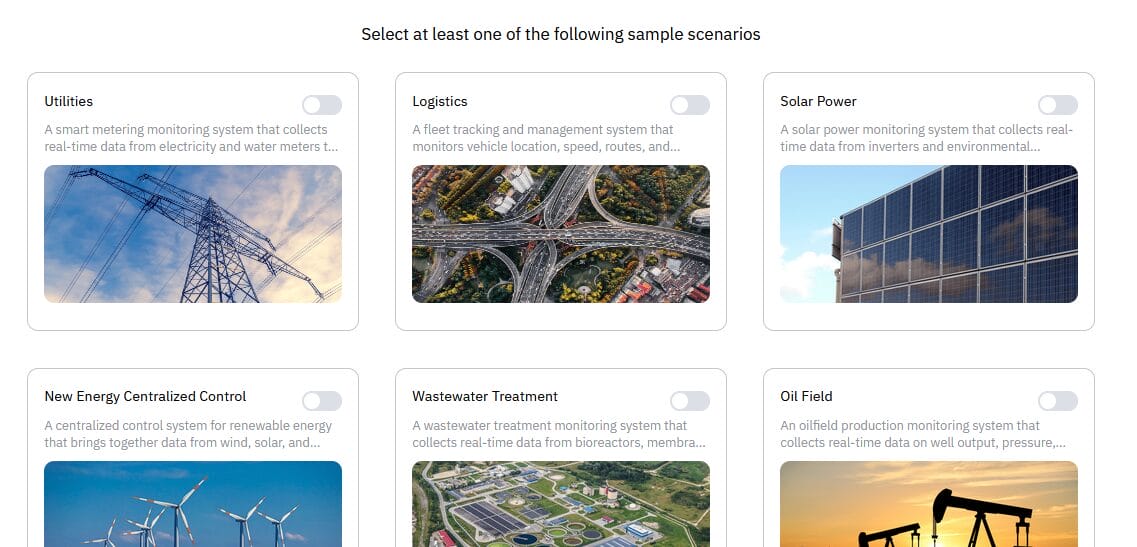
On the page displayed, select any of the sample scenarios. This sample data will not be used in this exercise and can be ignored. Then click Confirm.

-
Click the X icon to close the tour guide. You can go through this guide on your own at any time by clicking the profile icon in the upper right and selecting Tour Guide.
Ingest MQTT Data
-
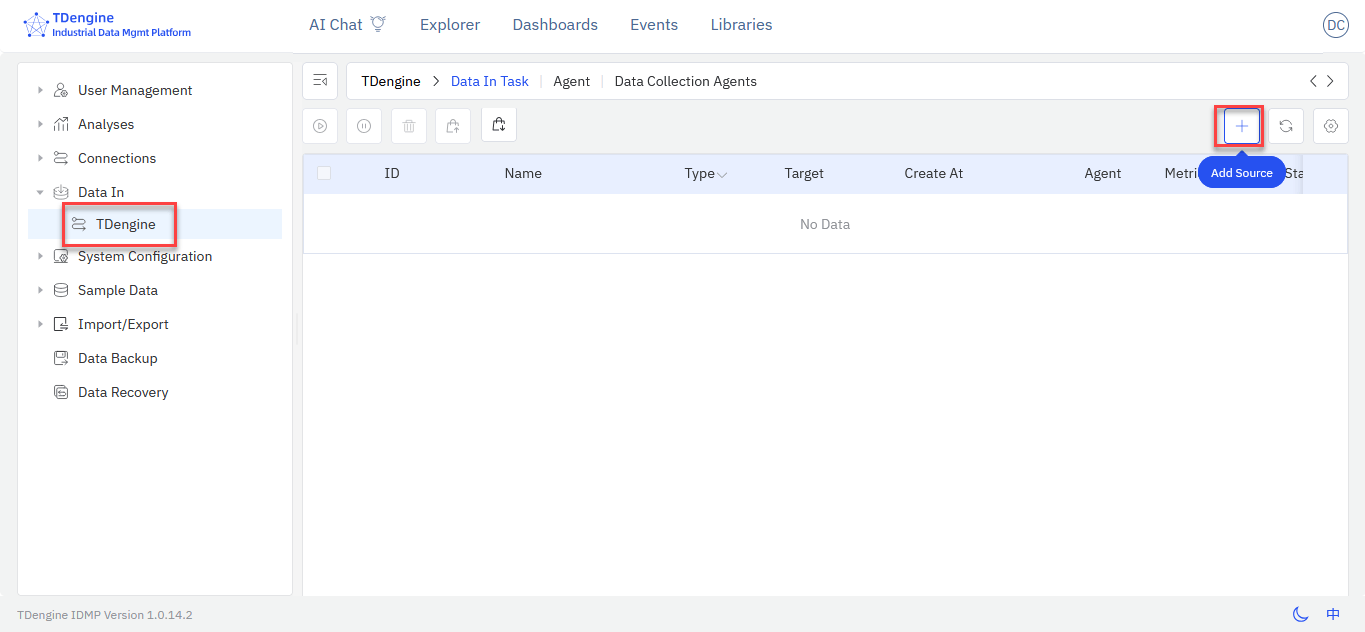
Click the profile icon in the upper right and select Admin Console. Then, in the sidebar on the left, select Data In > TDengine.
-
Click the + (Create New Task) icon to create an MQTT ingestion task.

-
In the General Information section, click Create Database. Enter a name for the database and click Create. You can retain all default values.

-
In the General Information section, enter a unique name for the data ingestion task. From the Type drop-down menu, select MQTT. From the Target drop-down menu, select the database that you created in the previous step.
In the Connection Configuration section, enter mqtt.tdengine.com as the MQTT Host and 1883 as the MQTT Port.

-
In the Collect section, enter the following for Topics QoS Config:
oee/fill_line_01::0,oee/fill_line_02::0,oee/fill_line_03::0,oee/fill_line_04::0Then click Check Connection to ensure that your configuration is correct.

If you encounter any errors, confirm that your Internet connection is stable and that you can access
mqtt.tdengine.com. -
In the Payload Transformation section, click Retrieve from Server. Five data records will be retrieved and displayed in JSON format in the text box on the left.
Then click the Parse icon. This parses the MQTT data records so that they can be written to TDengine TSDB.

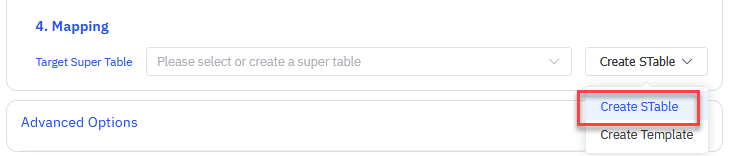
At the bottom of the section, click Create STable to create a supertable for the boiler data.

-
In the Create STable dialog box, configure your supertable.
-
Enter a unique name for the supertable.
-
Set the
TIMESTAMPcolumn totsand delete the prefilledtscolumn. -
Move all other VARCHAR columns (
site, building, suite, line_id, path, batch_id, product_code, shift_id, line_mode,andstate_reason) to the Tags section. You can do this by clicking the tag icon on the right of each item.
-
Delete any blank tags and click Create.

-
-
After returning to the Mapping section, enter ${line_id} as the SubTableName. This names automatically generated subtables based on the value of the
line_idtag.
-
Click Submit to create the data ingestion task. The task is automatically started, and data from the four MQTT topics is ingested into TDengine.




At this point, your data ingestion task is writing data from four MQTT topics into a supertable in TDengine.
Import Data into TDengine IDMP
-
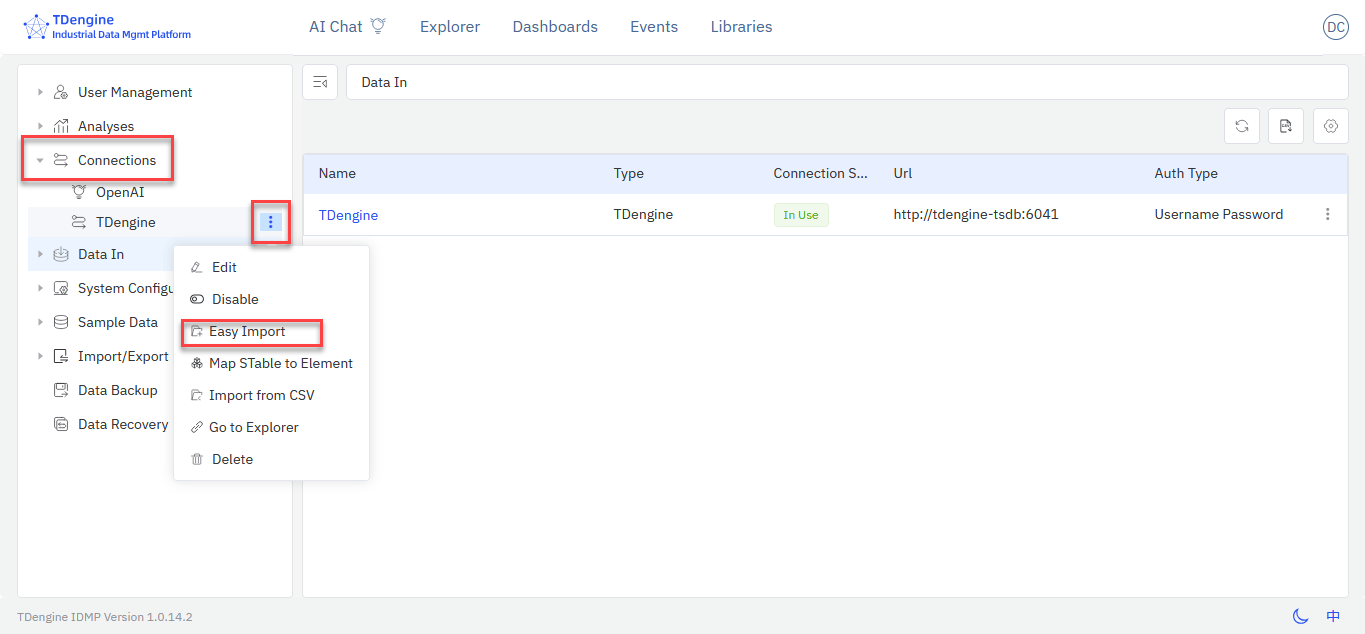
Click the profile icon in the top right corner and select Admin Console.
-
Select Connections, click the three dots icon next to TDengine, and open the Easy Import page.

-
Select the database that you created for your data ingestion task and deselect Ignore on its supertable. Under Map STable to Element, set the tag path as the Path and rename it
OEE Workshop.
-
Confirm that Ignore is selected on all other databases not used in this workshop, such as the sample scenario data. Then click Finish at the bottom of the page. Asset data is imported into TDengine IDMP.
-
From the main menu at the top, select Explorer. In the sidebar, open the Elements tree to see your assets in TDengine IDMP under the OEE Workshop parent element.



Your data is now imported and can be used in TDengine IDMP.
Initial Investigation
- Select Fill Line 01 > Panels and prompt AI as follows:
show oee, availability, quality, and performance as a line chart over the past three days - View the generated panel and save it.
- Enable multiple lanes and hover over periods of low OEE to check which factors are causing them.
-
Click Panel Insights to generate a report.


Create Events for Low OEE
-
Select Fill Line 01 > Analyses and create a new task.
- Trigger type: Event window
- Start trigger:
attributes['oee']<90 - True for: 1m
- Stop trigger:
attributes['oee']>=90
-
Open the Events tab and add the latest events to the analysis chart.

-
View and save the analysis chart as a panel.

-
Add availability, performance, and quality to the analysis chart.

-
Save and view the panel. Upon examination, it can be seen that drops in OEE are strongly correlated with drops in performance, whereas quality and availability are not significantly affecting OEE in this scenario. The operator can then take steps to improve performance, addressing the root cause of the low OEE.


