This procedure describes how to use the IDMP EasyUse skill to create an AI-generated demo for your use case. This scenario includes not just data ingestion, but also data modeling and asset tree construction, panel configuration, and analysis and event generation.
Before You Begin
- This procedure is verified to work on macOS as well as Ubuntu and Debian GNU/Linux. Other mainstream Linux distributions are likely usable.
- For Windows users, the procedure can be run in Windows Subsystem for Linux (WSL), but TDengine Historian must be deployed in Docker.
- The Windows OpenCode desktop application is not supported.
- A large-language model is required to run this procedure.
- The entire demo generation procedure will take about 45 minutes.
Procedure
- Deploy TDengine TSDB and TDengine IDMP as described in the documentation.
- Activate TDengine IDMP.
-
In a terminal, create a directory for this procedure and open it. For example:
mkdir myproject cd myproject -
In your project directory, create the
.opencodedirectory.mkdir .opencode -
In the
.opencodedirectory, create a file namedlogin.txtcontaining the following information:TDengine IDMP: host: 127.0.0.1 port: 6042 user: your-idmp-user password: your-idmp-password TDengine TSDB: host: 127.0.0.1 port: 6041 user: root password: taosdataUnder TDengine IDMP, enter an existing user name and password for your deployment.
- Download the skills to your local machine and decompress them to the
.opencodedirectory. The path should be.opencode/skills -
Install OpenCode:
-
Linux:
sudo apt install npm sudo npm install -g opencode-ai -
macOS:
curl -fsSL https://opencode.ai/install | bash
-
-
Run OpenCode:
opencode -
In the OpenCode console displayed, connect an LLM:
/connectA list of supported LLMs is displayed. Configure your LLM as prompted. For example, to use a ChatGPT account, select OpenAI > ChatGPT (Browser) and enter your ChatGPT user name and password in the browser that is opened automatically.
-
Display the list of loaded skills:
/skills -
Run the IDMP EasyUse skill and prompt it to create the demo that you want for a wide variety of use cases. Make sure to include the location of
login.txtso that the AI can log in to TDengine. For example:/idmp-easyuse Create a smart manufacturing demo and use the TDengine credentials provided in .opencode/login.txt
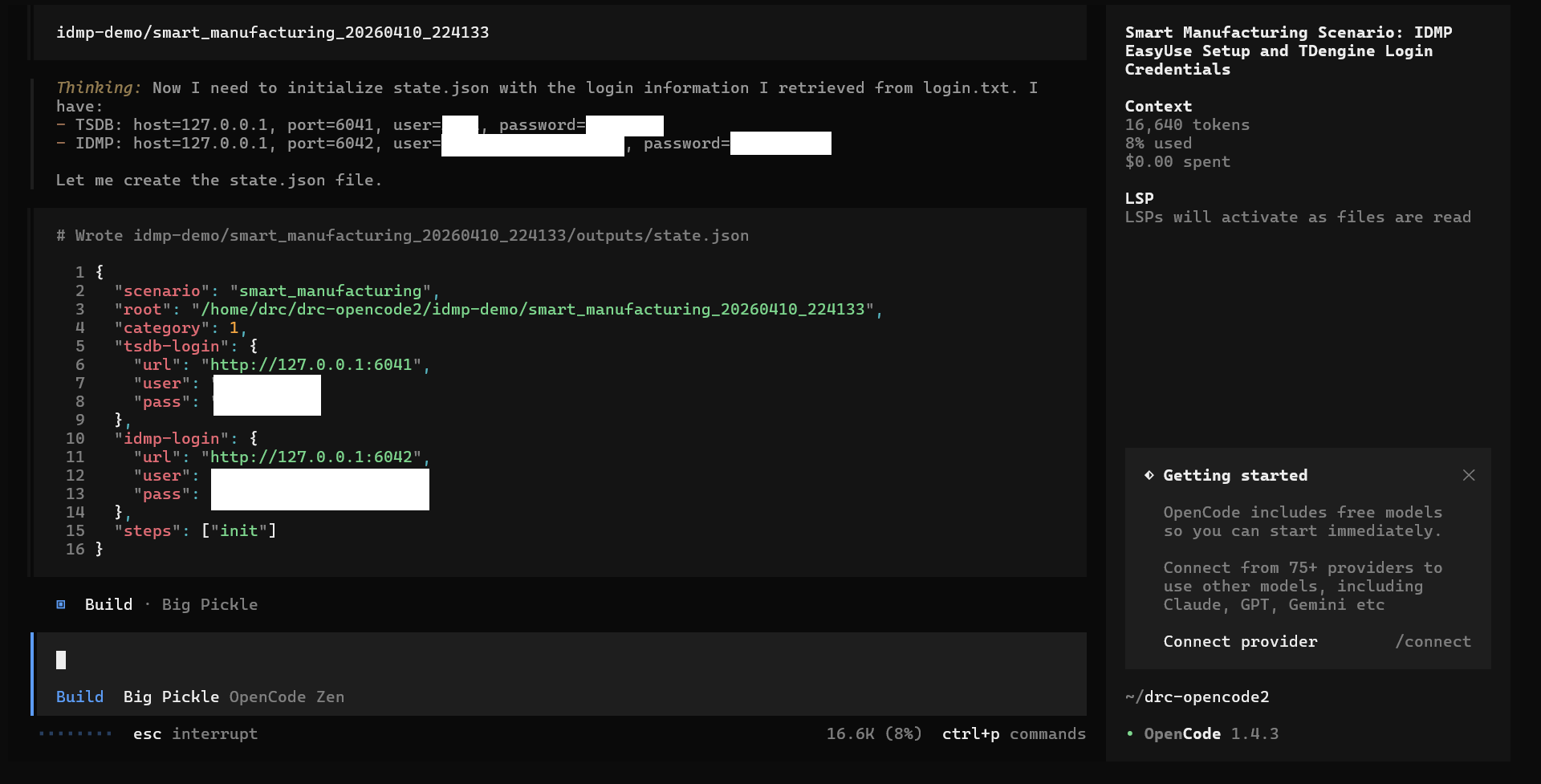
Your demo scenario is generated and loaded into TDengine Historian. This process may take around 45 minutes to complete.
Once OpenCode has finished, log in to TDengine IDMP and view the elements, panels, and analyses created by the AI to verify whether the demo has generated successfully.


