This workshop will show the end-to-end procedure for creating a P&ID diagram for boiler monitoring in an oil refinery environment. Sample boiler-related data is ingested from our public MQTT broker and visualized in TDengine IDMP.
Video
Deploy TDengine Historian in Docker
-
Install Docker on your local machine. You can install Docker Desktop from the Docker website.
-
Install Git on your local machine. For more information, see the Git website.
-
Clone the tdengine-idmp-deployment repository:
git clone https://github.com/taosdata/tdengine-idmp-deployment.git -
Start Docker Compose:
cd tdengine-idmp-deployment/docker
docker compose up -d
Note: On Windows, use a backslash (\) instead of a forward slash (/):
cd tdengine-idmp-deployment\dockerThis command will automatically pull the required images and start the TDengine IDMP and TDengine TSDB-Enterprise services in detached mode.
-
In your browser, access TDengine IDMP at
http://localhost:6042and log in with your email address and organization. Then enter your name and other information as prompted to create your account. -
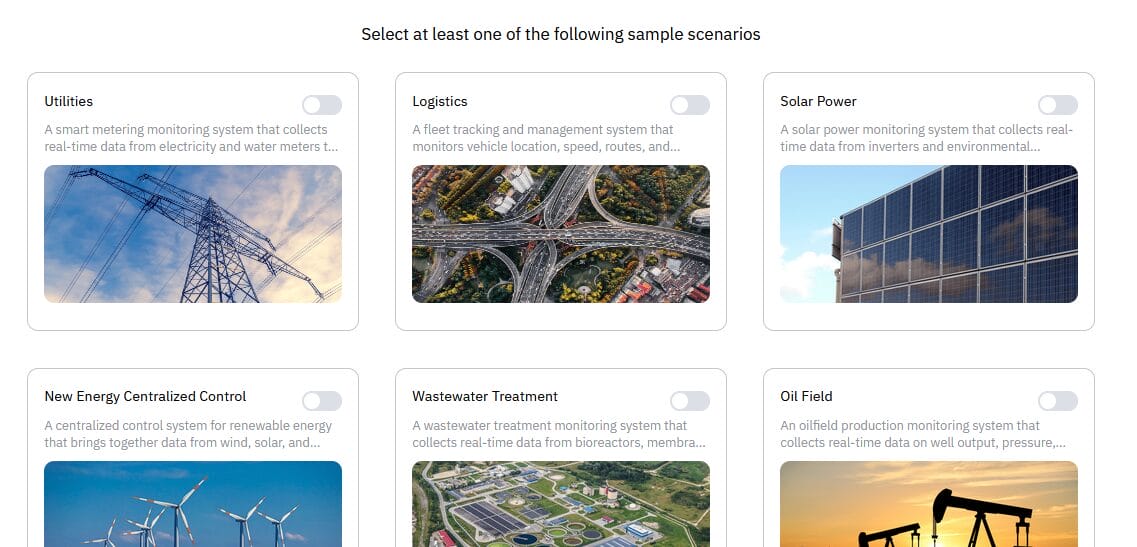
On the page displayed, select any of the sample scenarios. This sample data will not be used in this exercise and can be ignored. Then click Confirm.

-
Click the X icon to close the tour guide. You can go through this guide on your own at any time by clicking the profile icon in the upper right and selecting Tour Guide.
Ingest MQTT Data
-
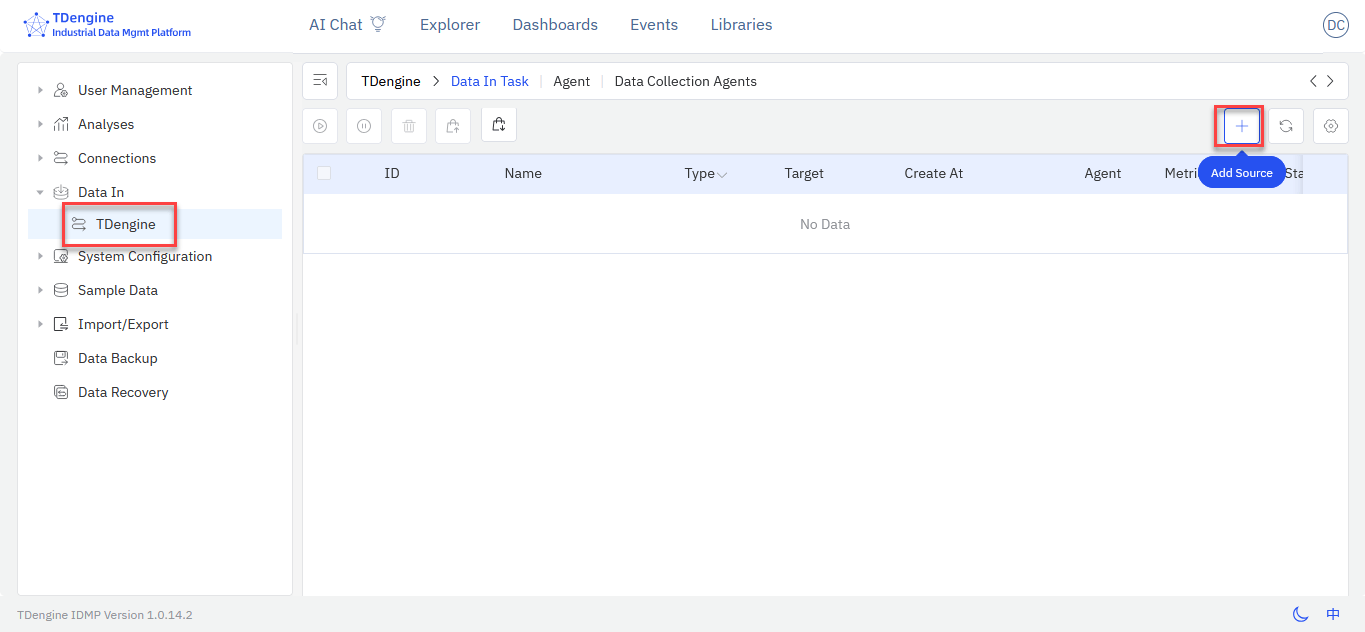
Click the profile icon in the upper right and select Admin Console. Then, in the sidebar on the left, select Data In > TDengine.
-
Click the + (Add Source) icon to create an MQTT ingestion task.

-
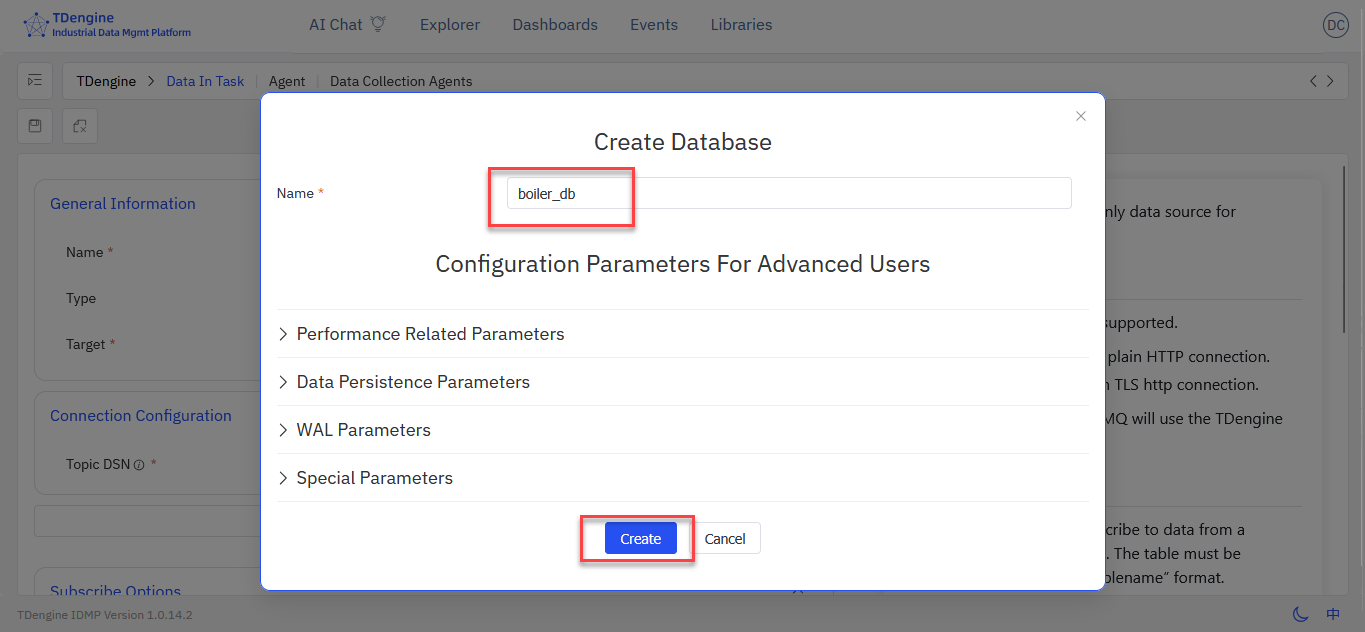
In the General Information section, click Create Database. Enter a name for the database and click Create. You can retain all default values.

-
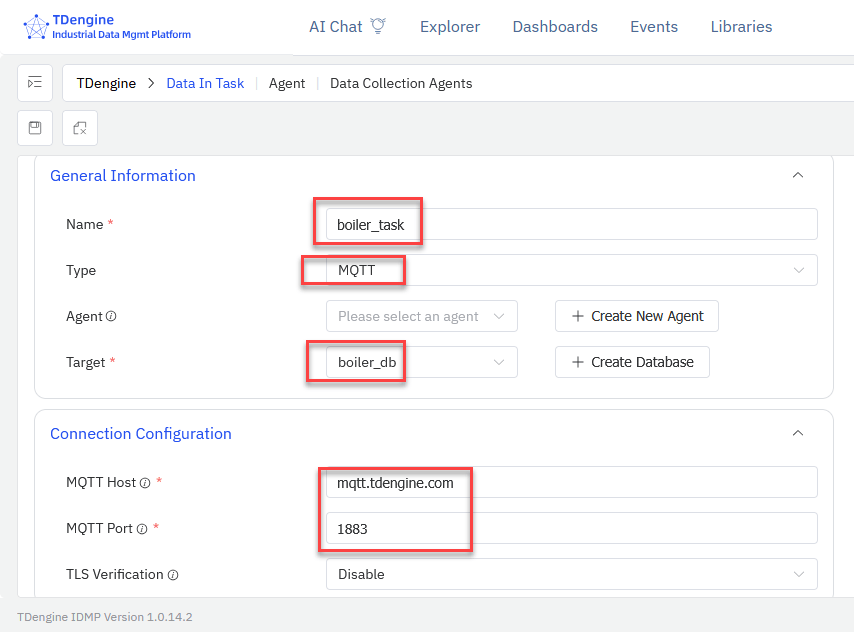
In the General Information section, enter a unique name for the data ingestion task. From the Type drop-down menu, select MQTT. From the Target drop-down menu, select the database that you created in the previous step.
In the Connection Configuration section, enter mqtt.tdengine.com as the MQTT Host and 1883 as the MQTT Port.

-
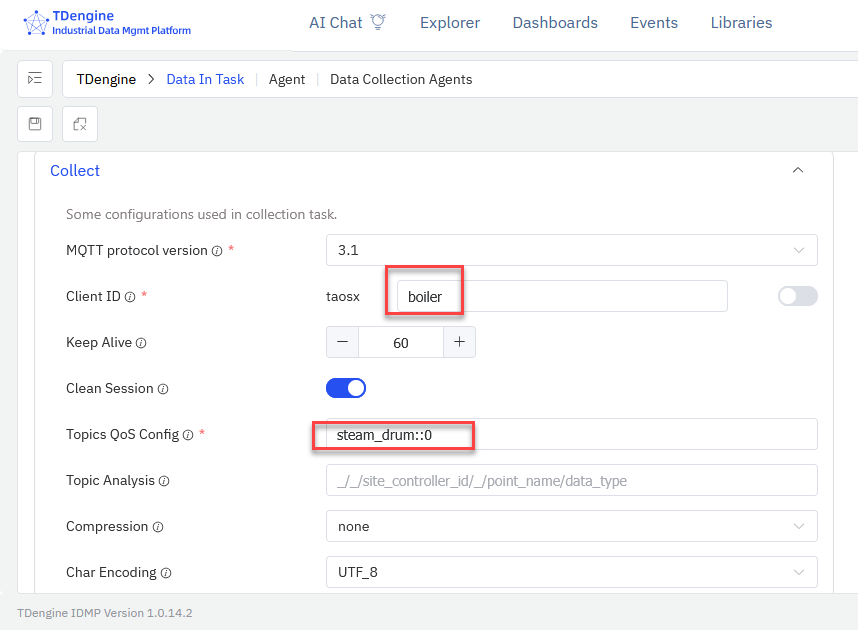
In the Collect section, enter a unique client ID for the data ingestion task. Then, in the Topics QoS Config field, enter steam_drum::0.

Click Check Connection to ensure that your configuration is correct.

If you encounter any errors, confirm that your Internet connection is stable and that you can access
mqtt.tdengine.com. -
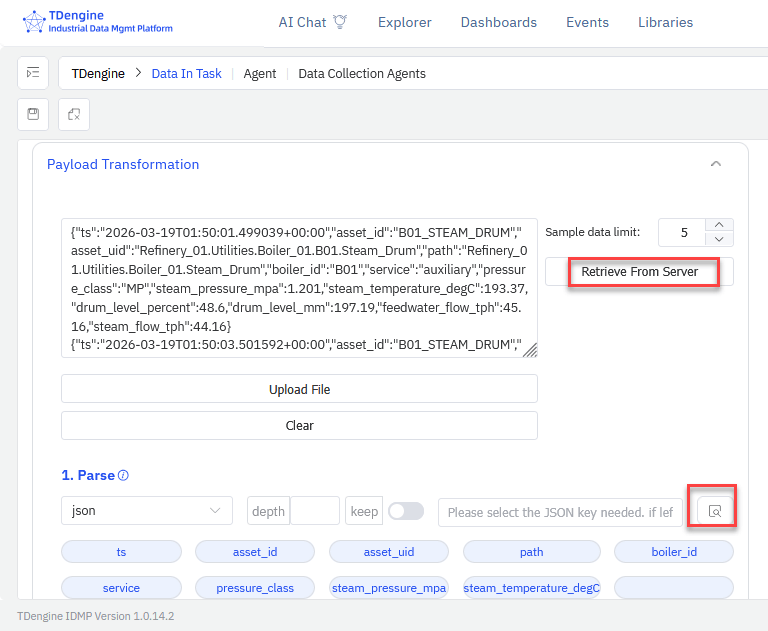
In the Payload Transformation section, click Retrieve from Server. Five data records will be retrieved and displayed in JSON format in the text box on the left.
Then click the Parse icon. This parses the MQTT data records so that they can be written to TDengine TSDB.

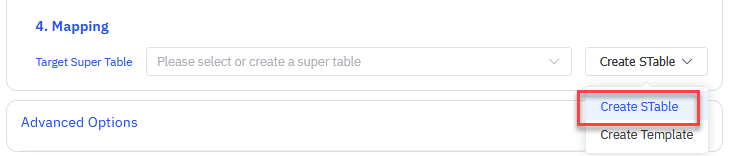
At the bottom of the section, click Create STable to create a supertable for the boiler data.

-
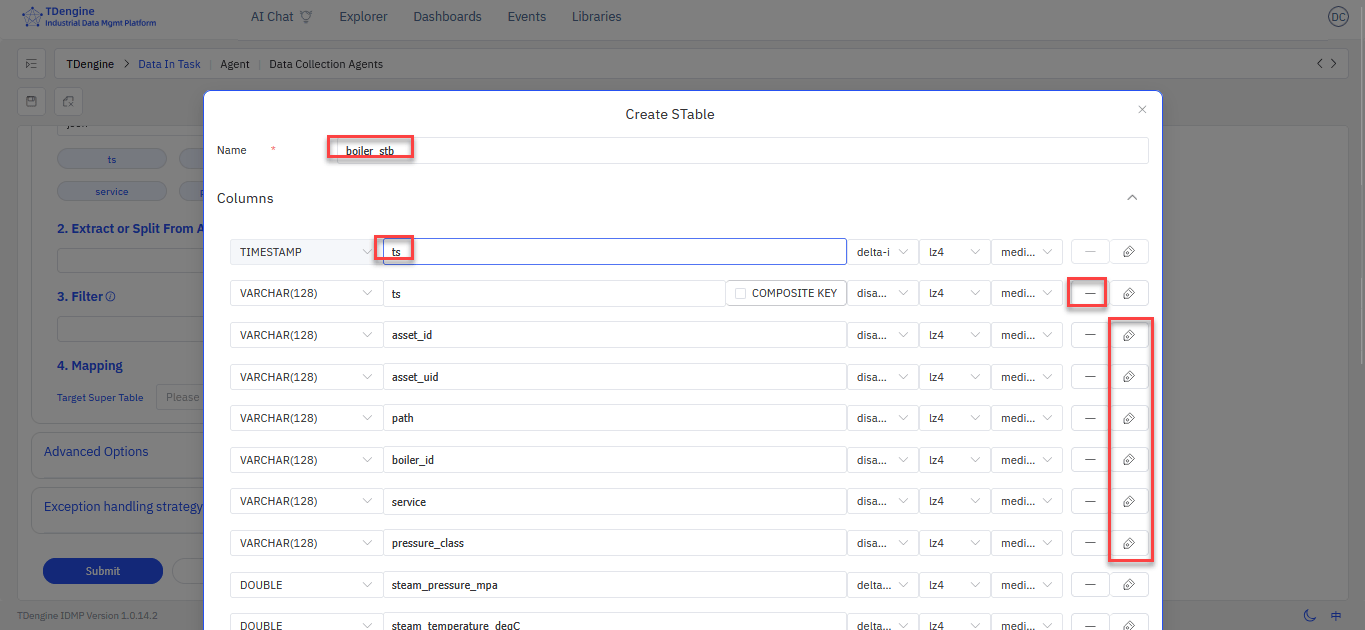
In the Create STable dialog box, configure your supertable.
-
Enter a unique name for the supertable.
-
Set the
TIMESTAMPcolumn totsand delete the prefilledtscolumn. -
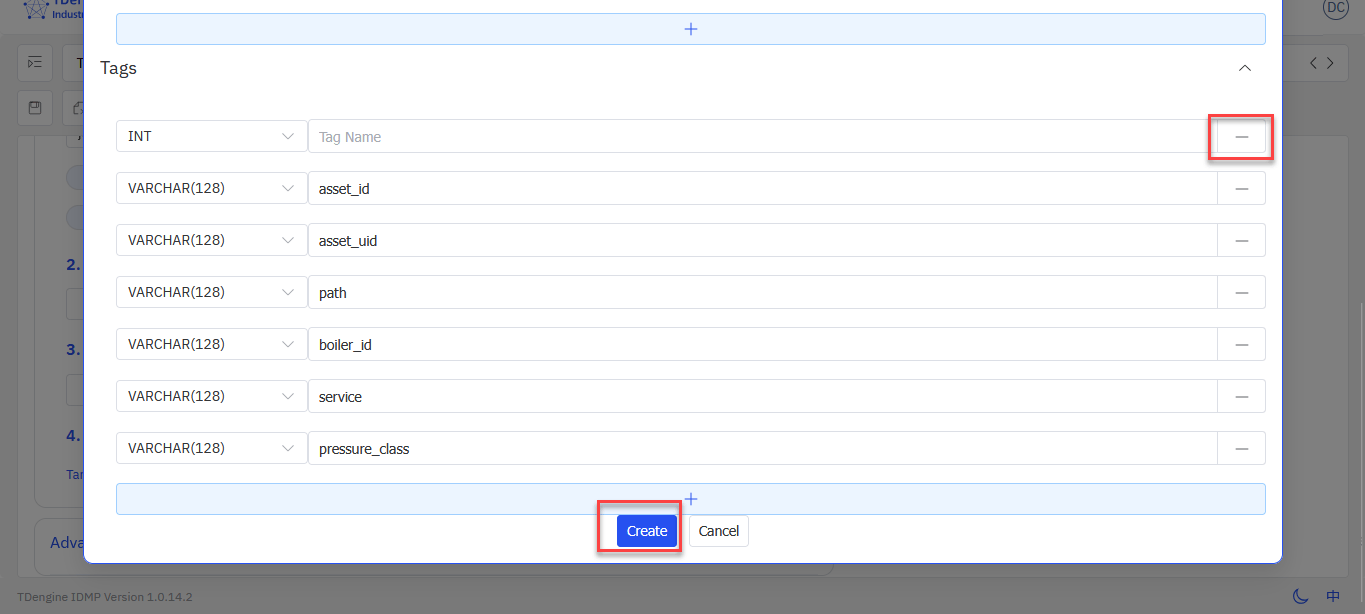
Move all other VARCHAR columns (
asset_id,asset_uid,path,boiler_id,service, andpressure_class)to the Tags section. You can do this by clicking the tag icon on the right of each item.
-
Delete any empty tags and click Create.

-
-
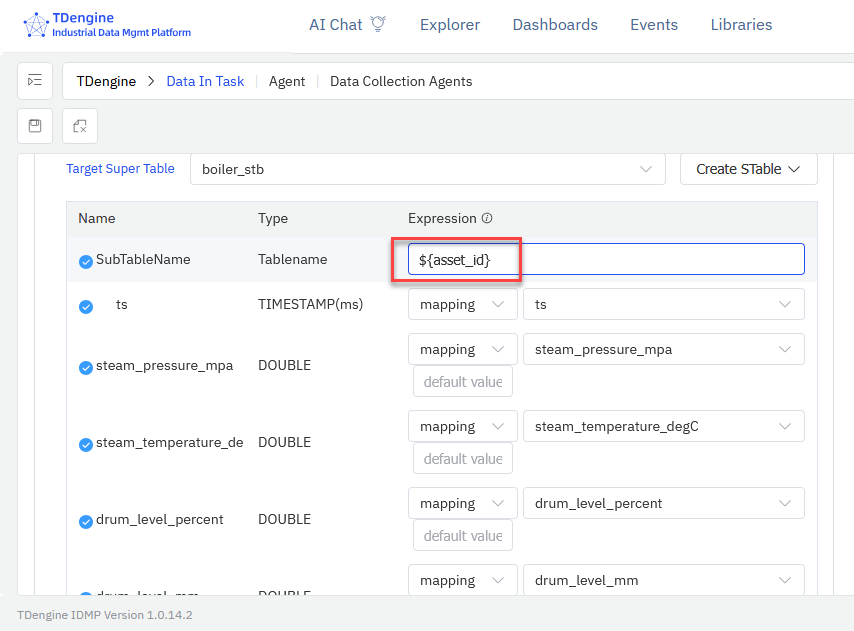
After returning to the Mapping section, enter ${asset_id} as the SubTableName. This names automatically generated subtables based on the value of the
asset_idtag.
-
Click Submit to create the data ingestion task. The task is automatically started, and data from the
steam_drumMQTT topic is ingested into TDengine. -
Repeat the entire procedure to ingest a second MQTT topic, noting the following:
- Enter a unique value for the task name, for example
boiler_task2. - Use the same database.
- Enter a unique value for the client ID, for example
boiler2. - In the Topics QoS Config field, enter
feedwater::0. - Create a separate supertable for each topic.
- In the SubTableName field, use the same value: ${asset_id}
- Enter a unique value for the task name, for example

At this point, you have two data ingestion tasks each ingesting one MQTT topic into a supertable in TDengine.
Import Data into TDengine IDMP
-
Click the profile icon in the top right corner and select Admin Console.
-
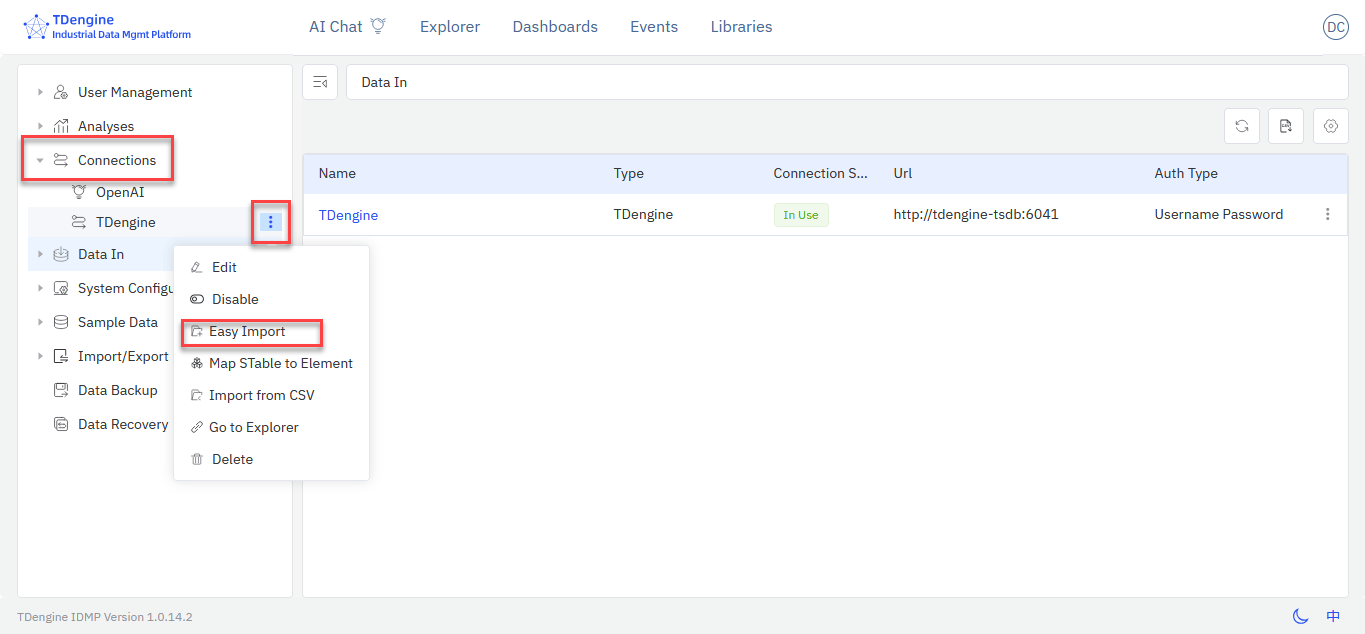
Select Connections, click the three dots icon next to TDengine, and open the Easy Import page.

-
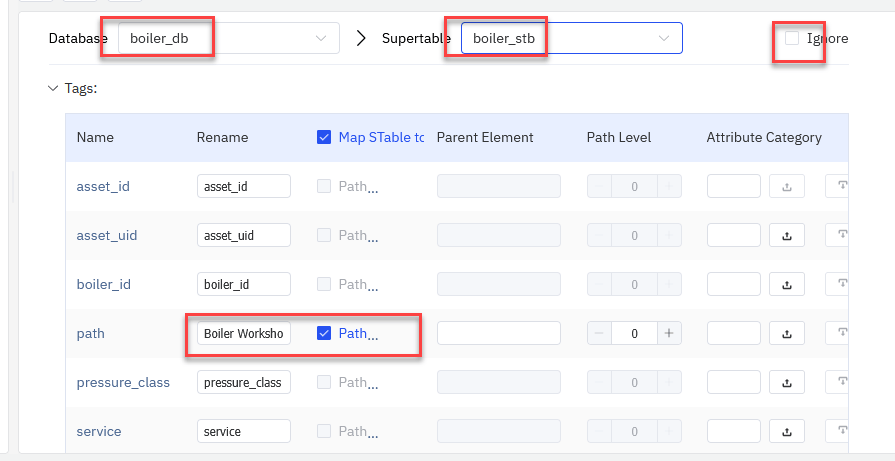
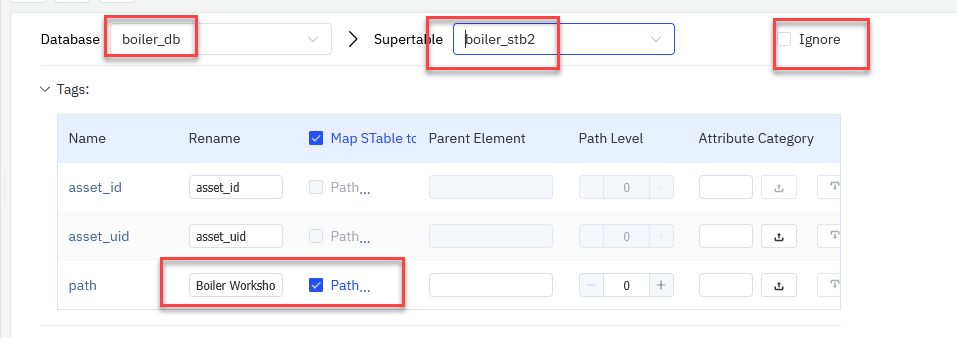
Select the database that you created for your data ingestion task and deselect Ignore on each supertable. Under Map STable to Element, set the tag path as the Path and rename it
Boiler Workshop.

Ensure that you have configured both supertables in your database and that the name of the path tag is the same for both supertables.
-
Confirm that Ignore is selected on all other databases not used in this workshop, such as the sample scenario data. Then click Finish at the bottom of the page. Asset data is imported into TDengine IDMP.
-
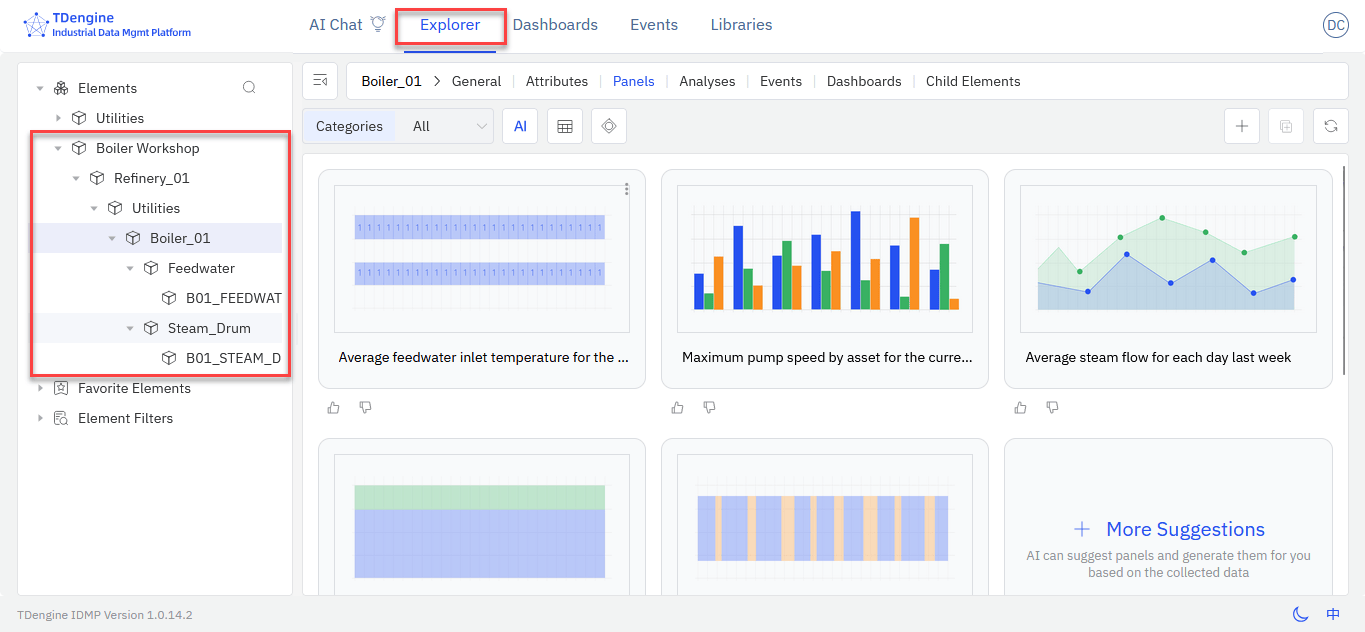
From the main menu at the top, select Explorer. In the sidebar, open the Elements tree to see your assets in TDengine IDMP under the Boiler Workshop parent element.

You can now add visualizations for your assets.
Create a Standard Panel
-
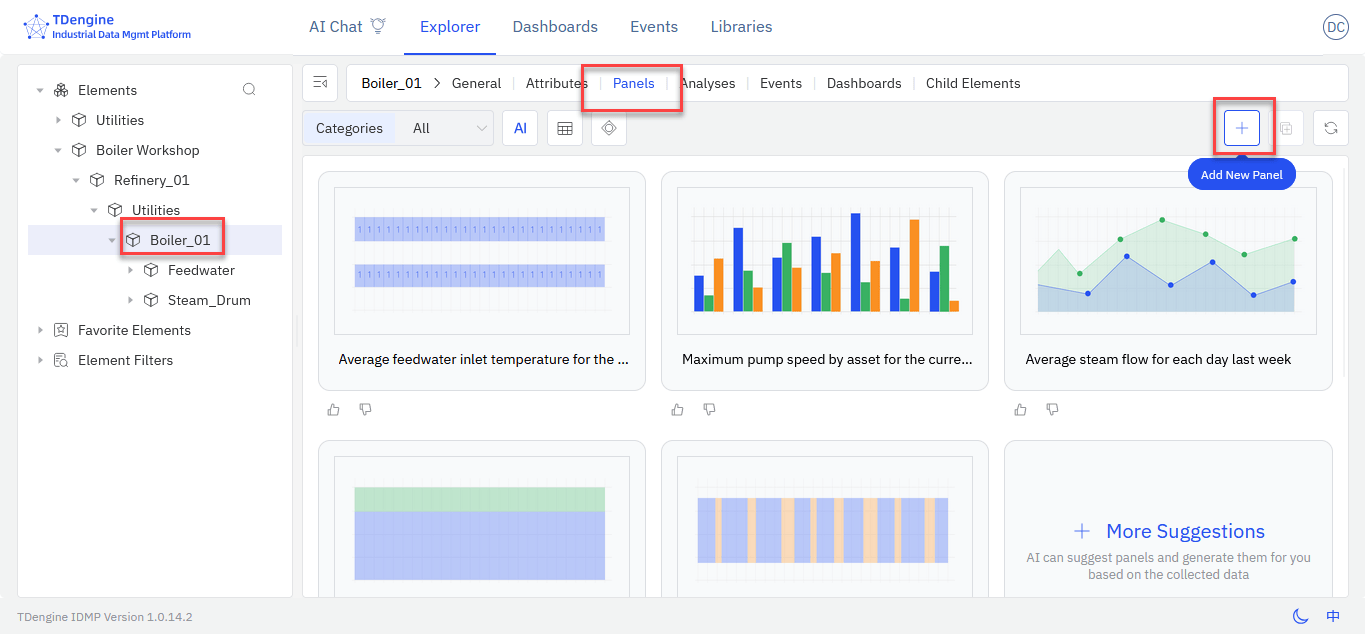
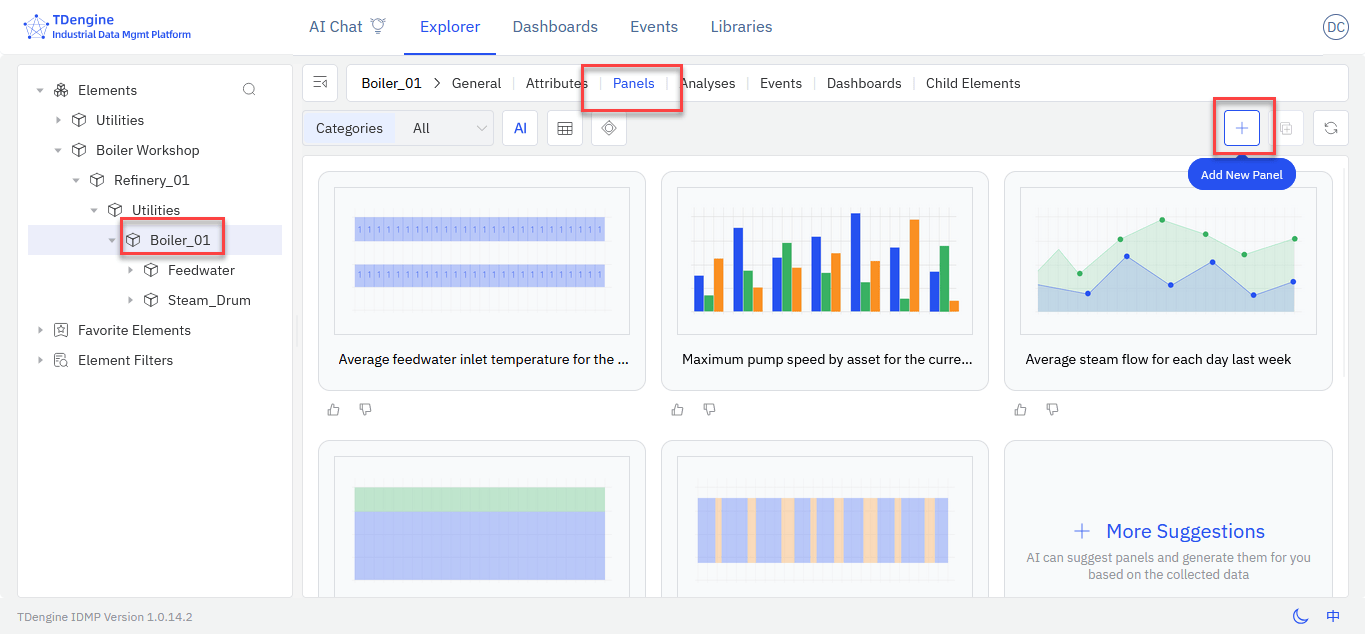
In the element explorer, select Boiler_01, open the Panels tab, and click the + (Add New Panel) icon.

-
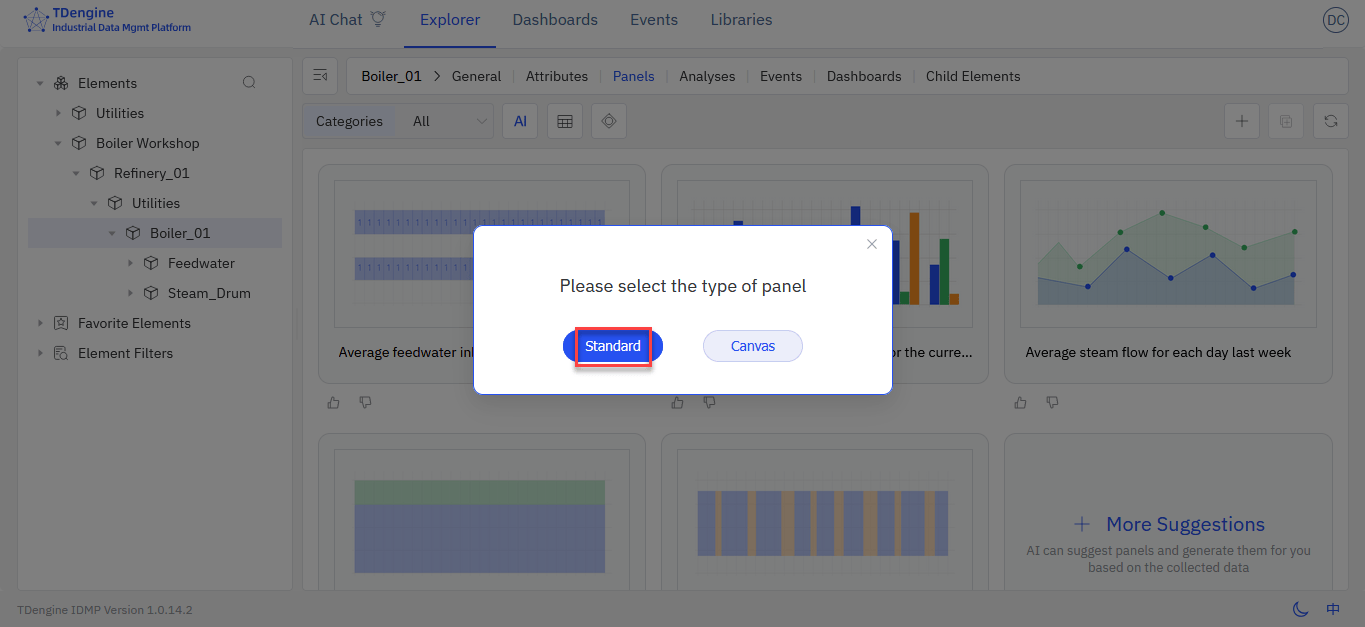
Click Standard.

-
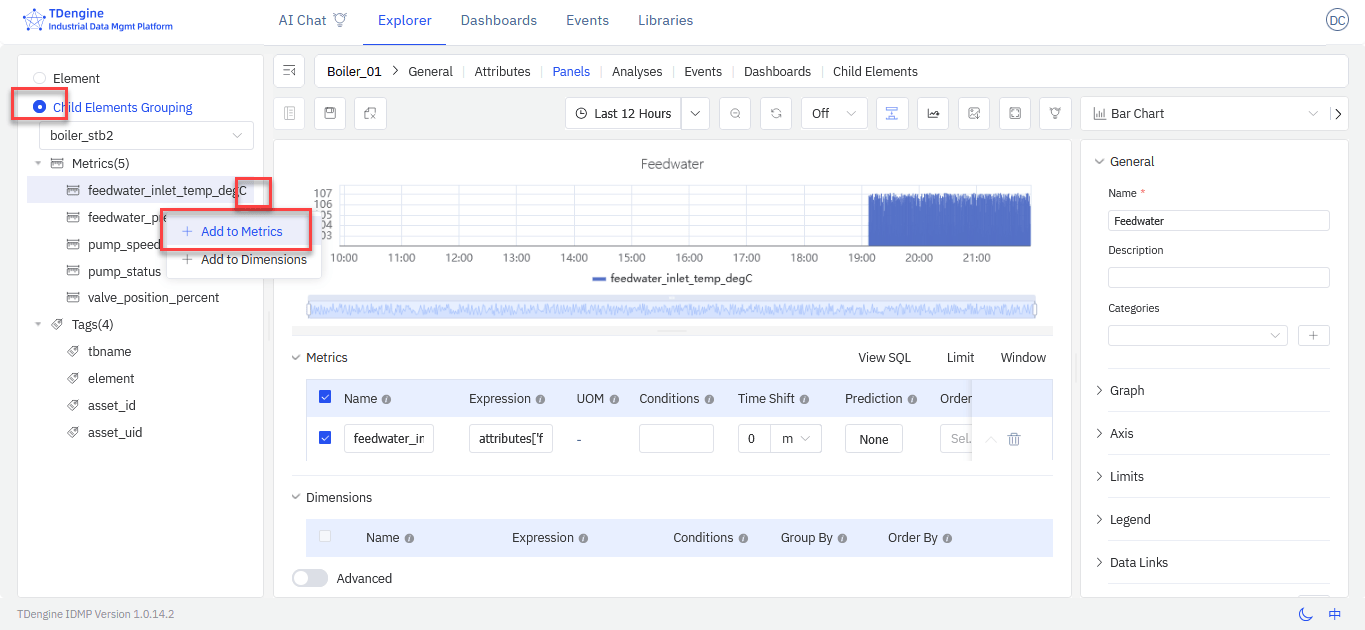
In the menu on the left, select Child Elements Grouping. Click the three dots icon next to feedwater_inlet_temp and choose Add to Metrics.

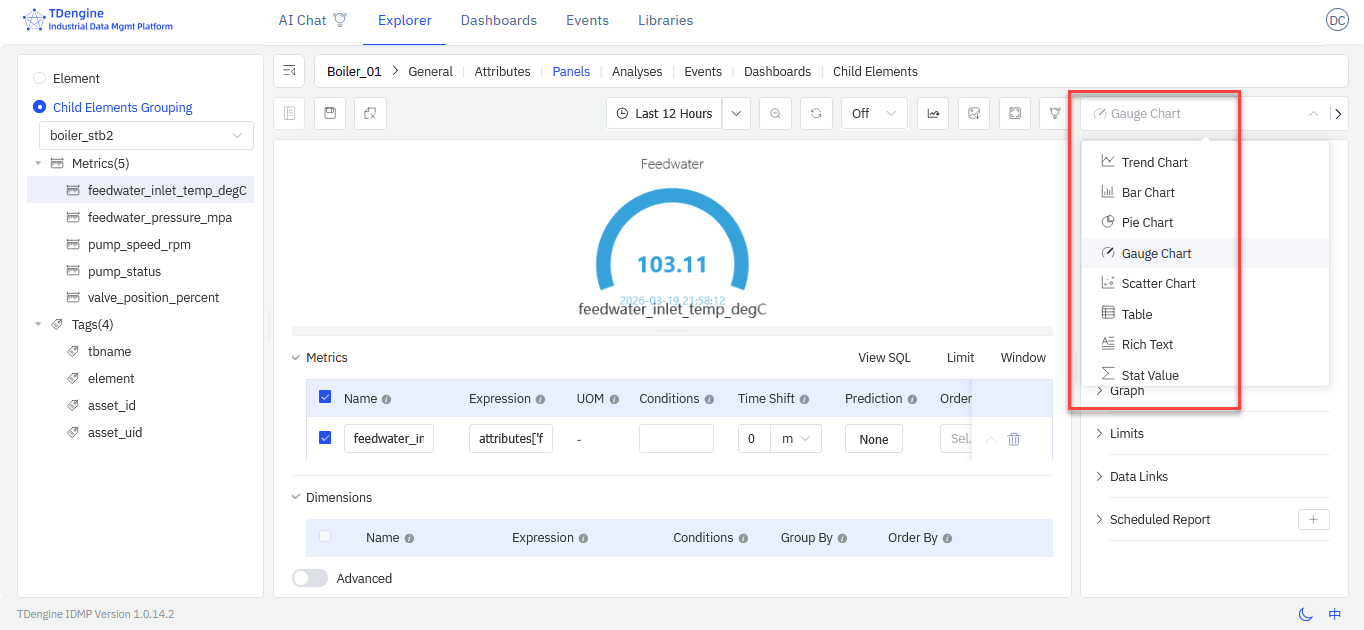
This shows a bar chart; click the menu on the right for other chart types.

-
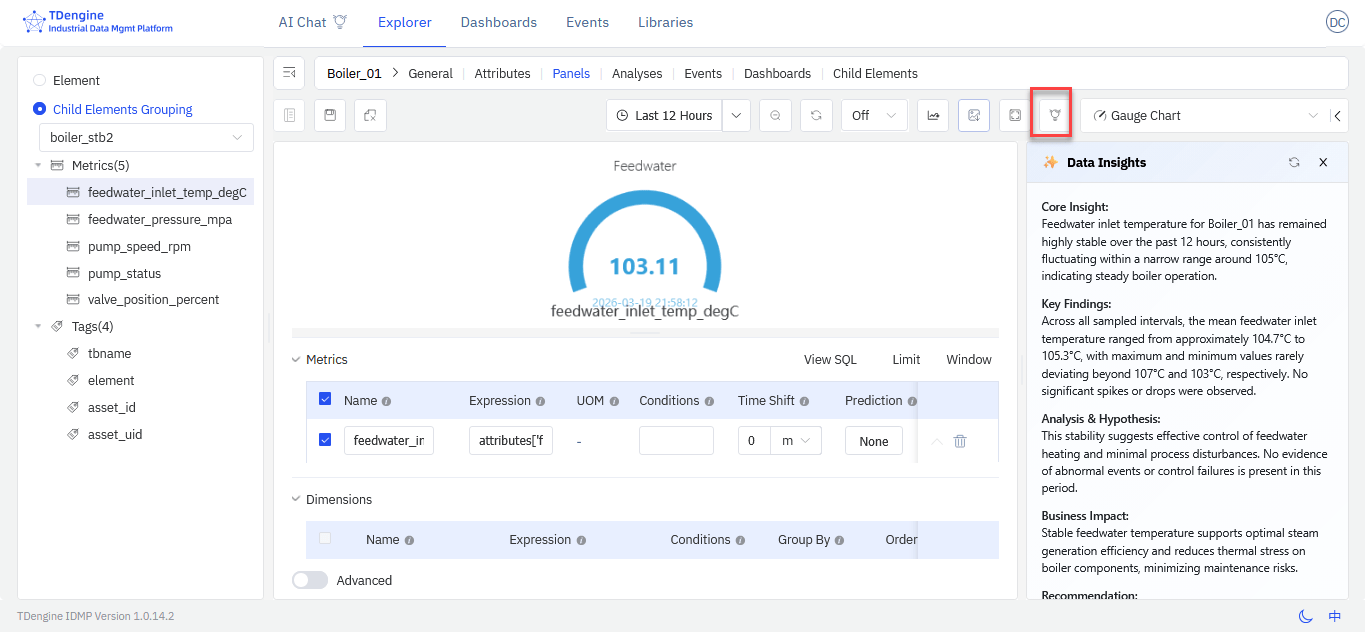
Click the Data Insights icon to show AI-powered insights for your current panel.

Click the Save icon to save your changes. You can experiment freely with panel features and create enterprise-grade visualizations for your dashboards and reports.
Create a Canvas Panel
-
In the element explorer, select Boiler_01, open the Panels tab, and click the + (Add New Panel) icon.

-
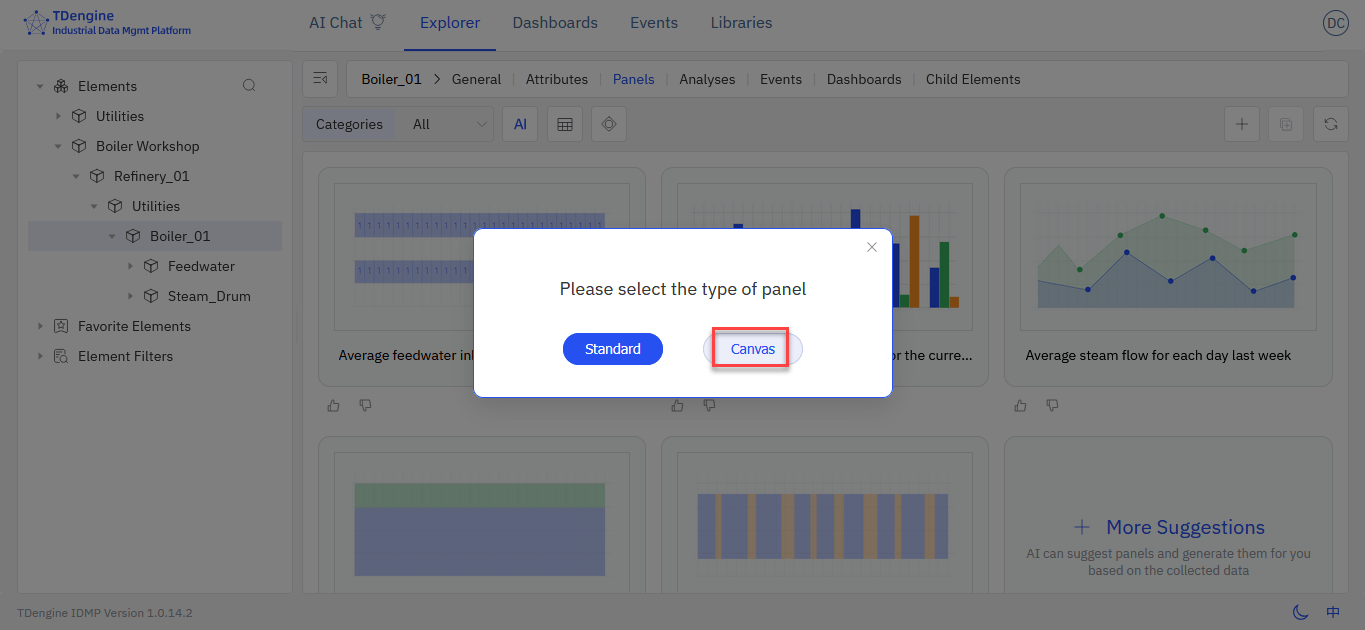
Click Canvas.

-
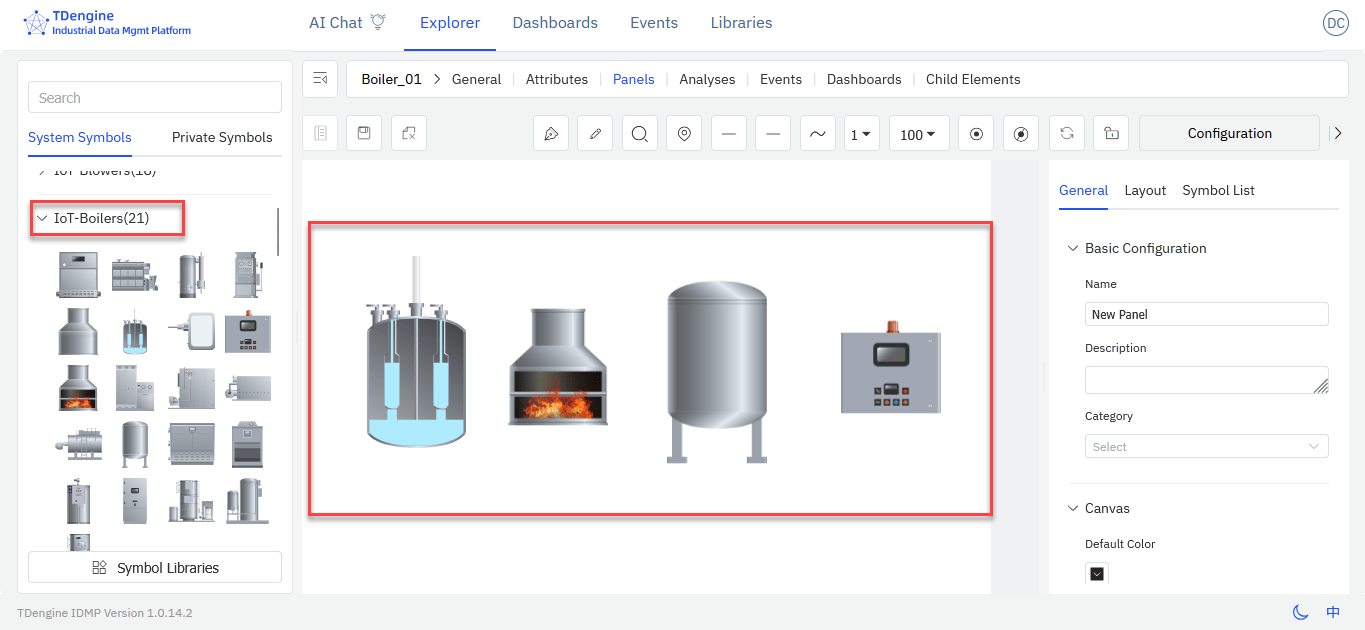
In the System Symbols section on the left, scroll down and open IoT-Boilers. Click and drag appropriate symbols onto the canvas.

-
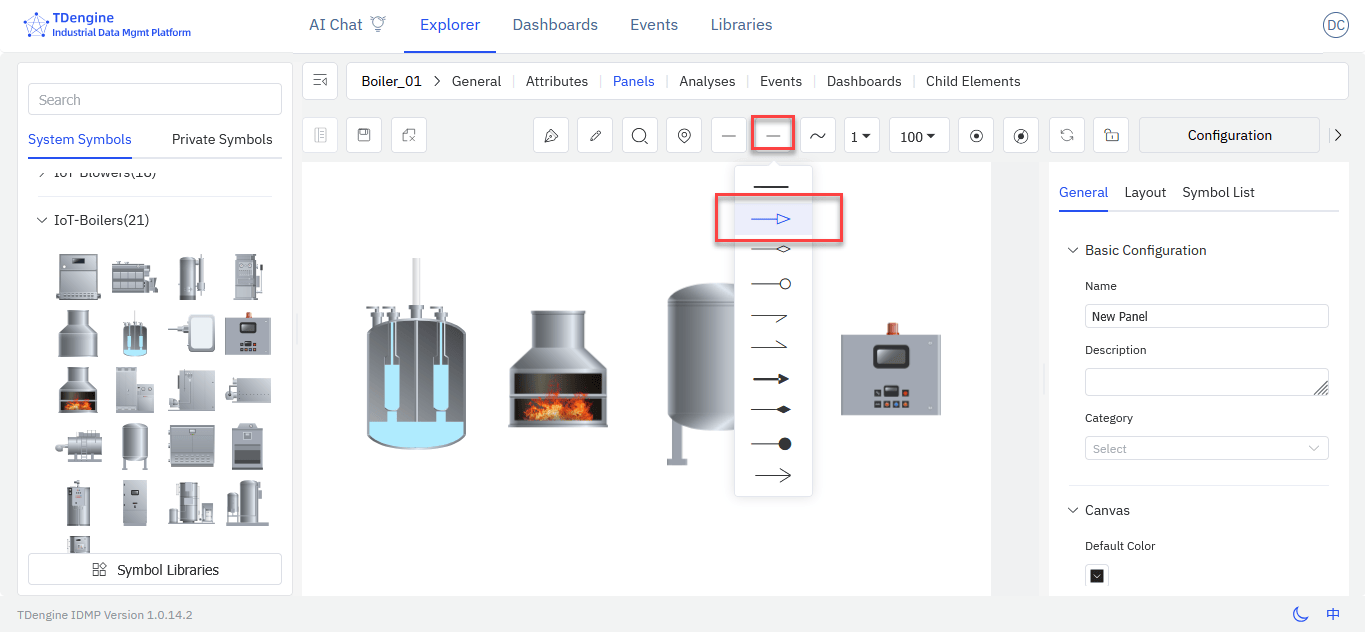
Click the To icon and select the line with an arrow.

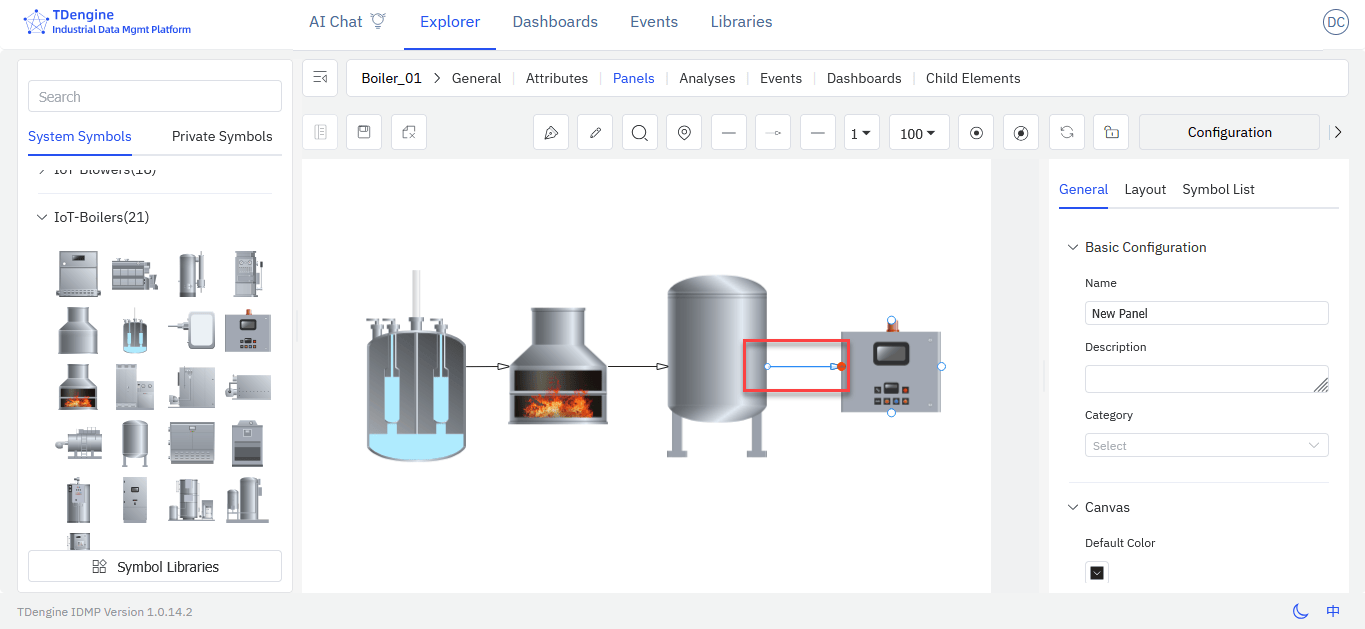
Then click one point on each symbol to create lines between them.

Experiment with Canvas Features
Animations
You can animate lines and symbols on your canvas for a clearer visual diagram.
-
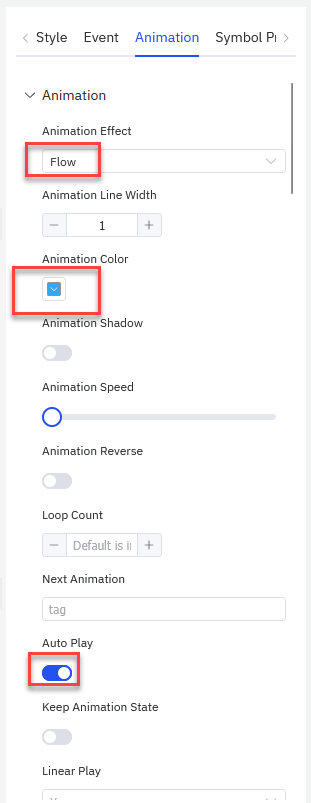
In the Configuration tab on the right, select Animation and specify the following:
- Animation Effect: Flow
- Animation Color: Select a blue color
- Auto Play: Enable

-
You can retain the default values for other options. The line you selected now displays a flow animation on the canvas.
Symbol Properties
You can configure a symbol to display real-time data from TDengine on your canvas.
-
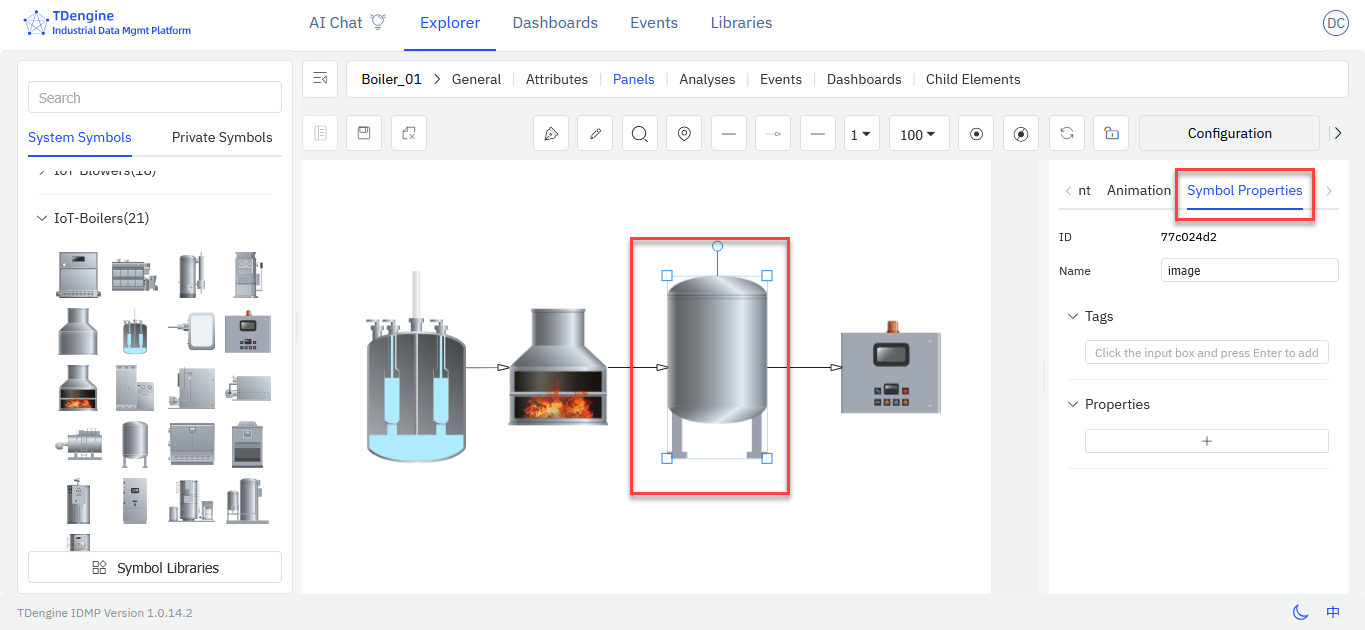
Select the drum symbol and open Configuration > Symbol Properties on the right.

-
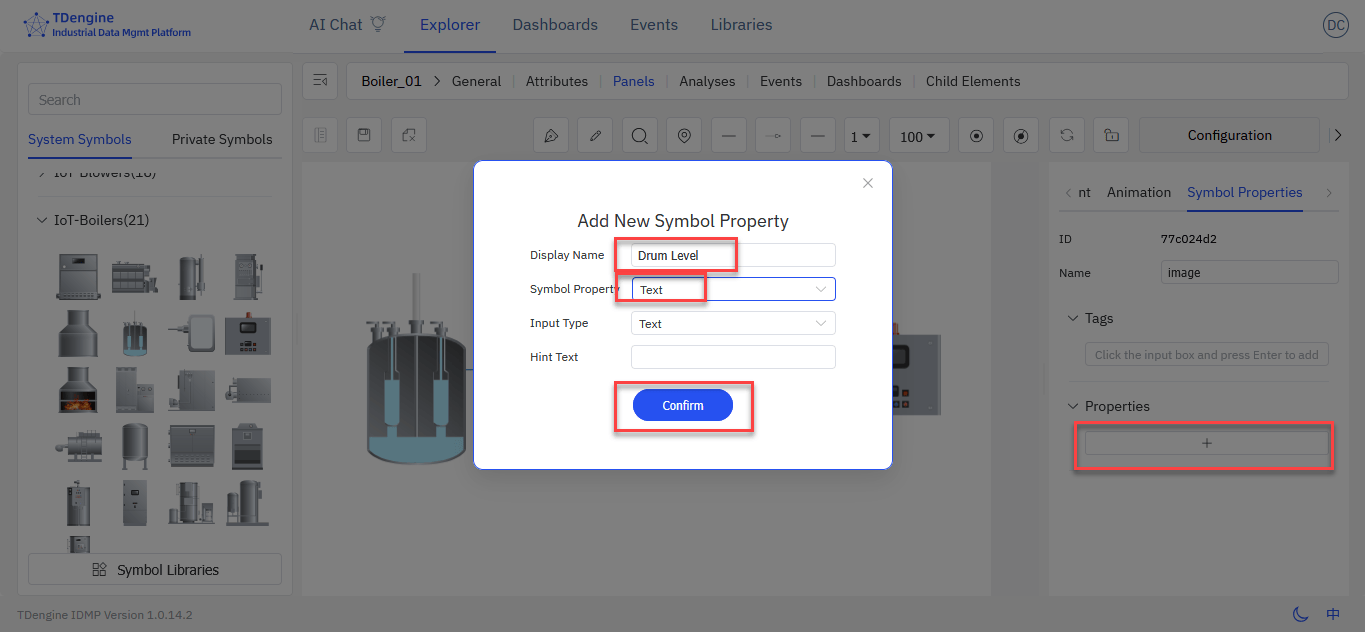
Click the + icon to add a new property. Enter a custom display name and set the Symbol Property to Text. Then click Confirm.

-
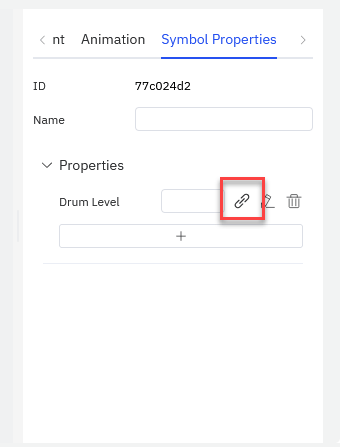
Click the Bind icon next to the property you created.

-
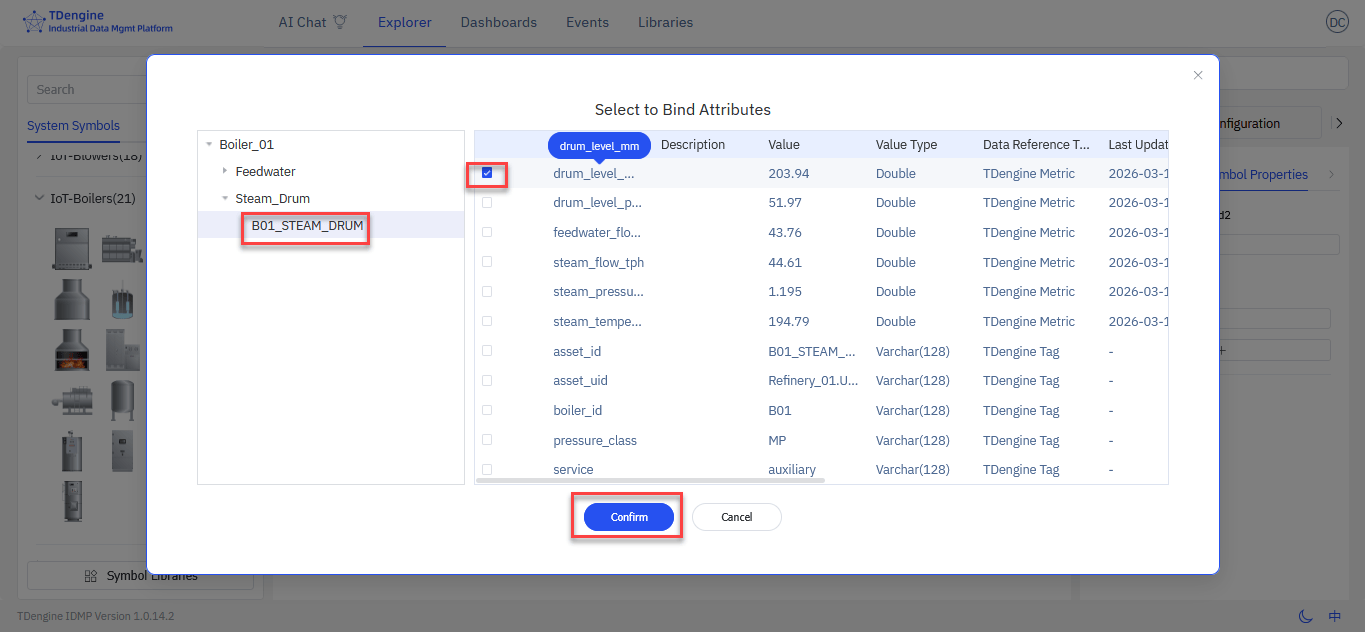
In the dialog box displayed, select Boiler_01 > Steam_Drum > B01_STEAM_DRUM to access data for the steam drum. Select drum_level_mm and click Confirm to add the drum level value to the symbol.

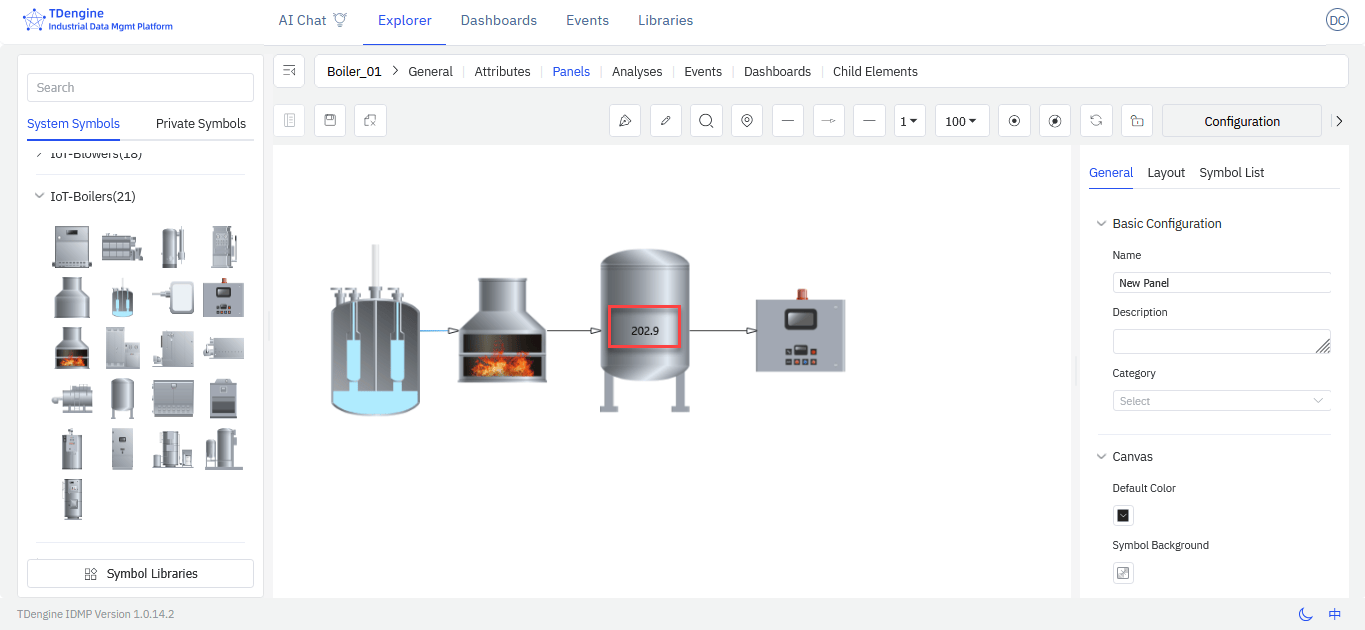
When you return to the canvas, the current value of drum_level_mm is displayed on the symbol, showing you the drum level in real time on your P&ID panel.
Conditional Visualizations
You can configure visualizations to change based on defined criteria.
-
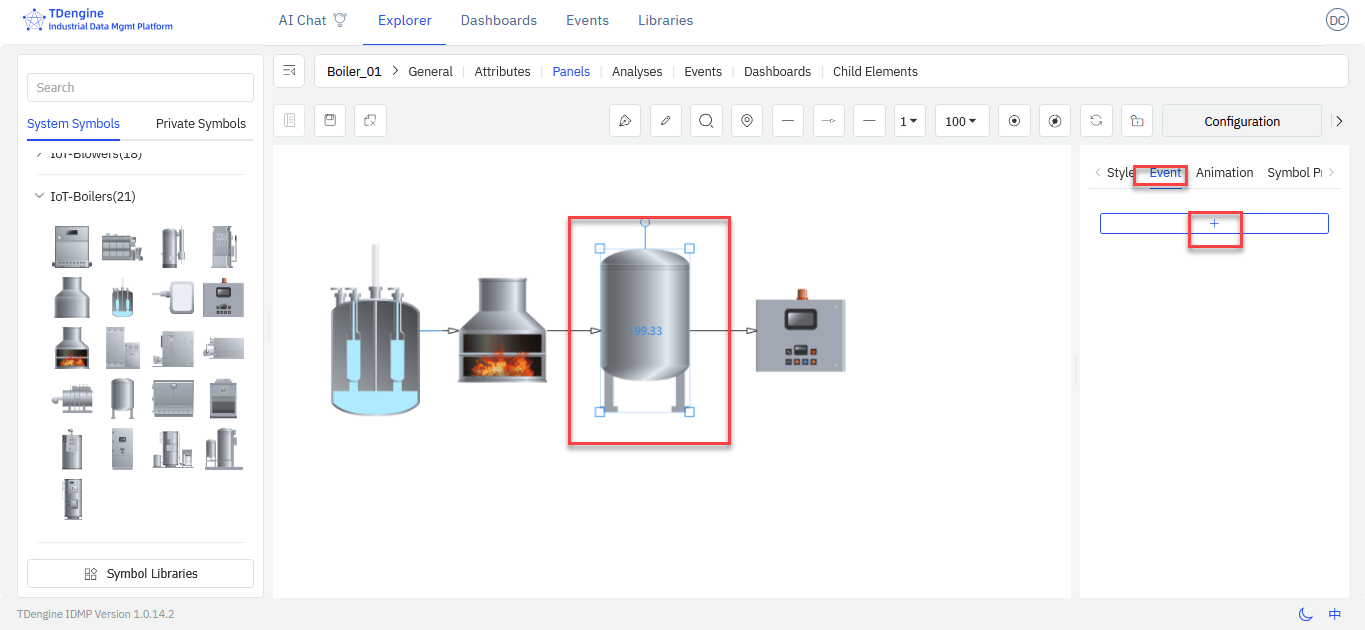
Select the drum symbol that is currently displaying the drum level and click Event on the right. Click the + icon to add a new condition.

-
As an example, we will set the text color to green when the value falls under 200 and red when the value is over 200.
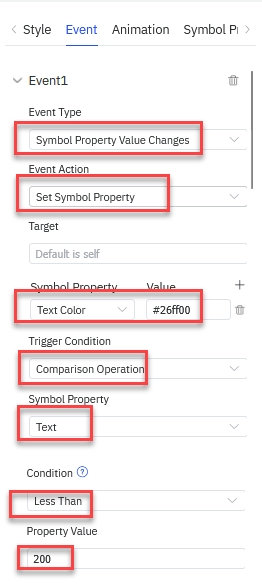
Configure the first event as follows:
- Event Type: Symbol Value Property Changes
- Event Action: Set Symbol Property
- Target: Leave blank
- Symbol Property: Text Color
- Value: #26ff00
- Trigger Condition: Comparison Operation
- Symbol Property: Text
- Condition: Less Than
- Property Value: 200

-
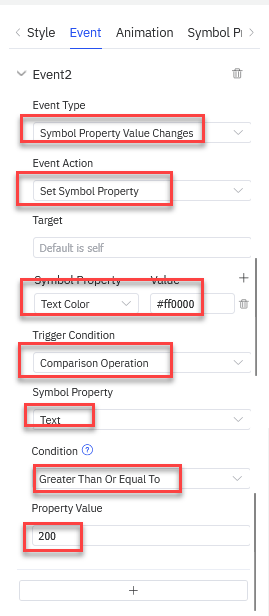
Click + to create a second event and configure it as follows (differences marked in bold):
- Event Type: Symbol Value Property Changes
- Event Action: Set Symbol Property
- Target: Leave blank
- Symbol Property: Text Color
- Value: #ff0000
- Trigger Condition: Comparison Operation
- Symbol Property: Text
- Condition: Greater Than Or Equal To
- Property Value: 200

-
Click the Lock icon to leave edit mode and preview the results.

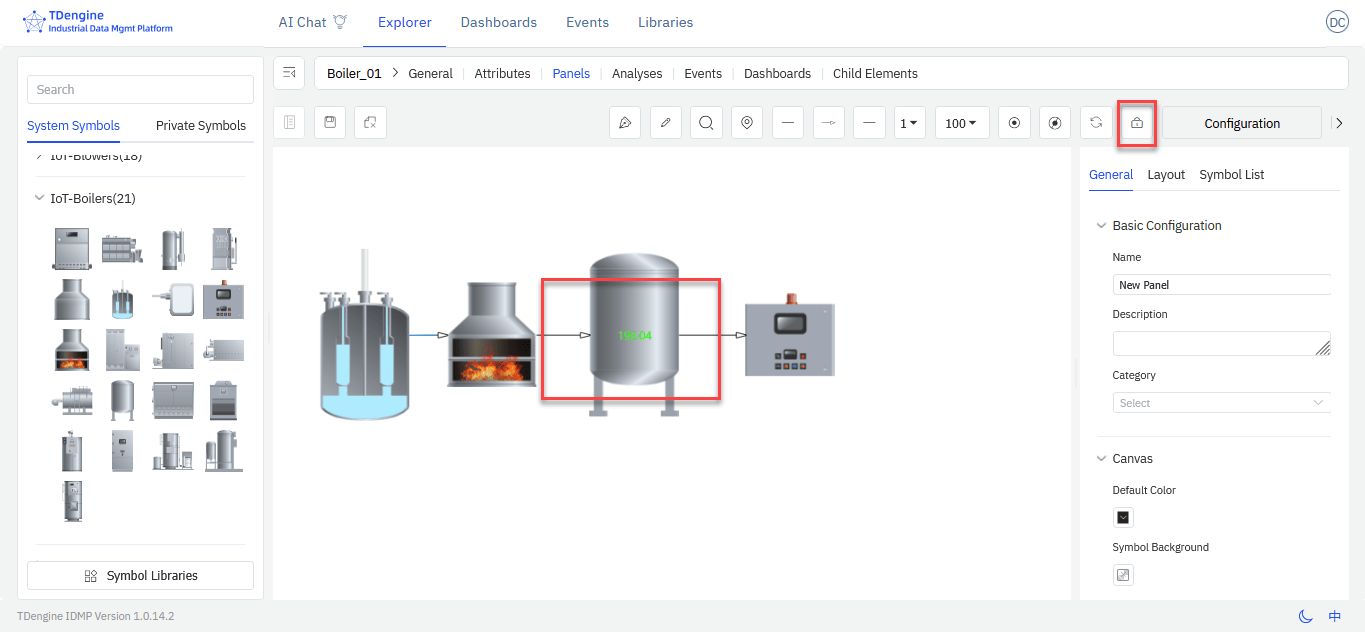
The value is displayed in green when under 200 and in red when over 200. You can click the refresh icon next to the lock icon to refresh the value manually for testing purposes.
Final Steps
In the General tab, name your panel. Then click the Save icon to save your changes.
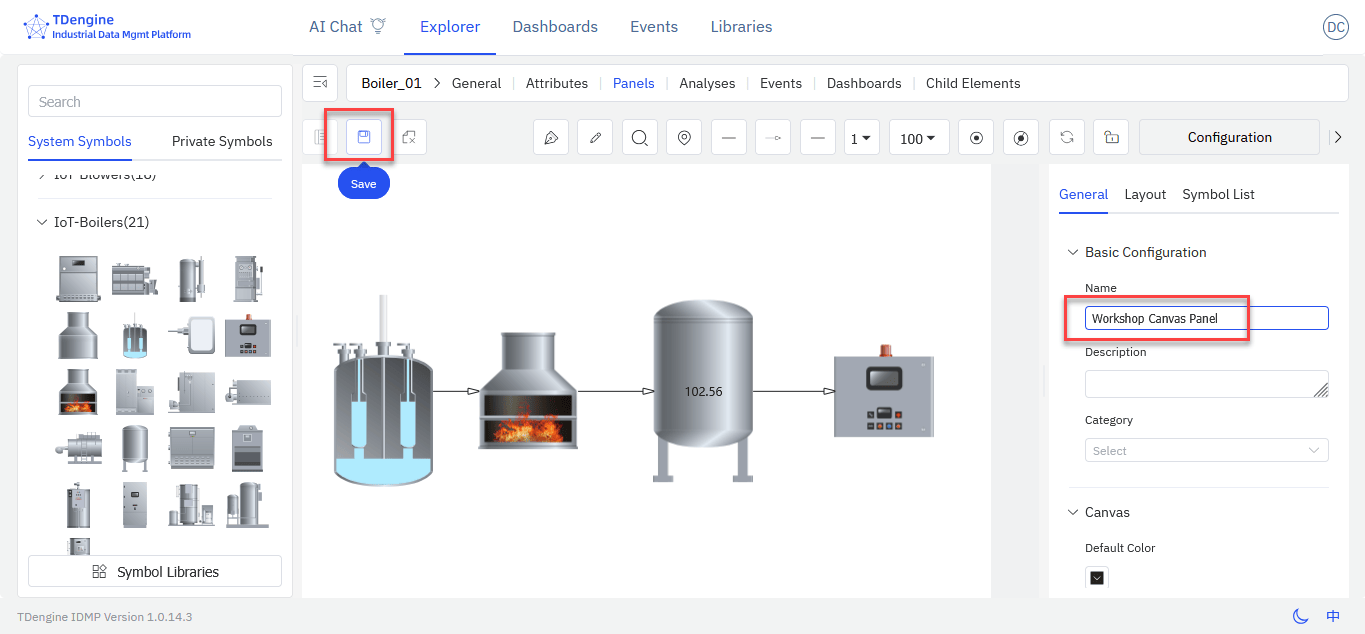
Your new panel is saved and can be viewed from the Boiler_01 page.
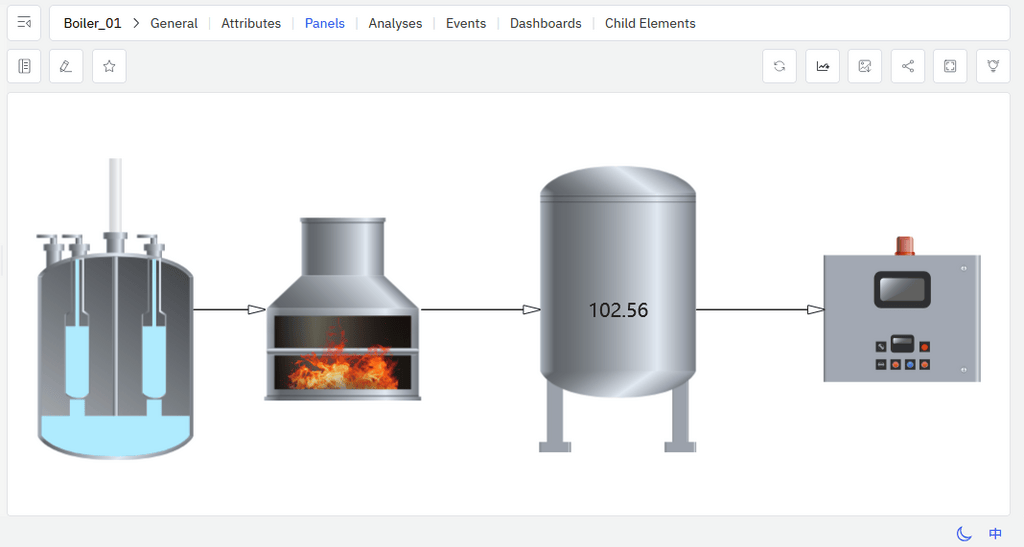
You can now experiment freely with canvas features and create enterprise-grade P&ID diagrams for use in dashboards and reports.


